Setting the Stock Push Schedule for Shopify
Last updated: October 29, 2026
Accessing the Stock Push Settings
Navigate to Manage → Channels in Luminous.
Select the relevant Shopify channel (Online Pickup for example).
Click three dots on the right and Edit channel to view and modify stock push configuration.
Understanding Default Stock Push Behavior
Default (No Schedule Enabled)
Stock push is enabled by default for Shopify channels unless others setting configure differently.
Without a schedule, Luminous pushes stock every four hours.
Push times are approximate, not precise.
System load and queue timing may cause pushes to run several minutes later than expected (e.g., 1:05–1:20 instead of exactly 1:00).
Enabling a Custom Stock Push Schedule
When to Enable
To control the exact frequency of stock pushes.
To increase push frequency beyond the default.
To reduce variability in push timing.
How to Enable
In the channel settings, go to the Push Inventory Stocks and Costs section. With Push Stock to Integration turned on and a Push To Integration Account selected, locate Enable Scheduled Push Stock.
Toggle Enable. When enable there are different option to choose
Mode - you can choose between Daily or hourly
Daily -
Set times - add specific or different time of the day
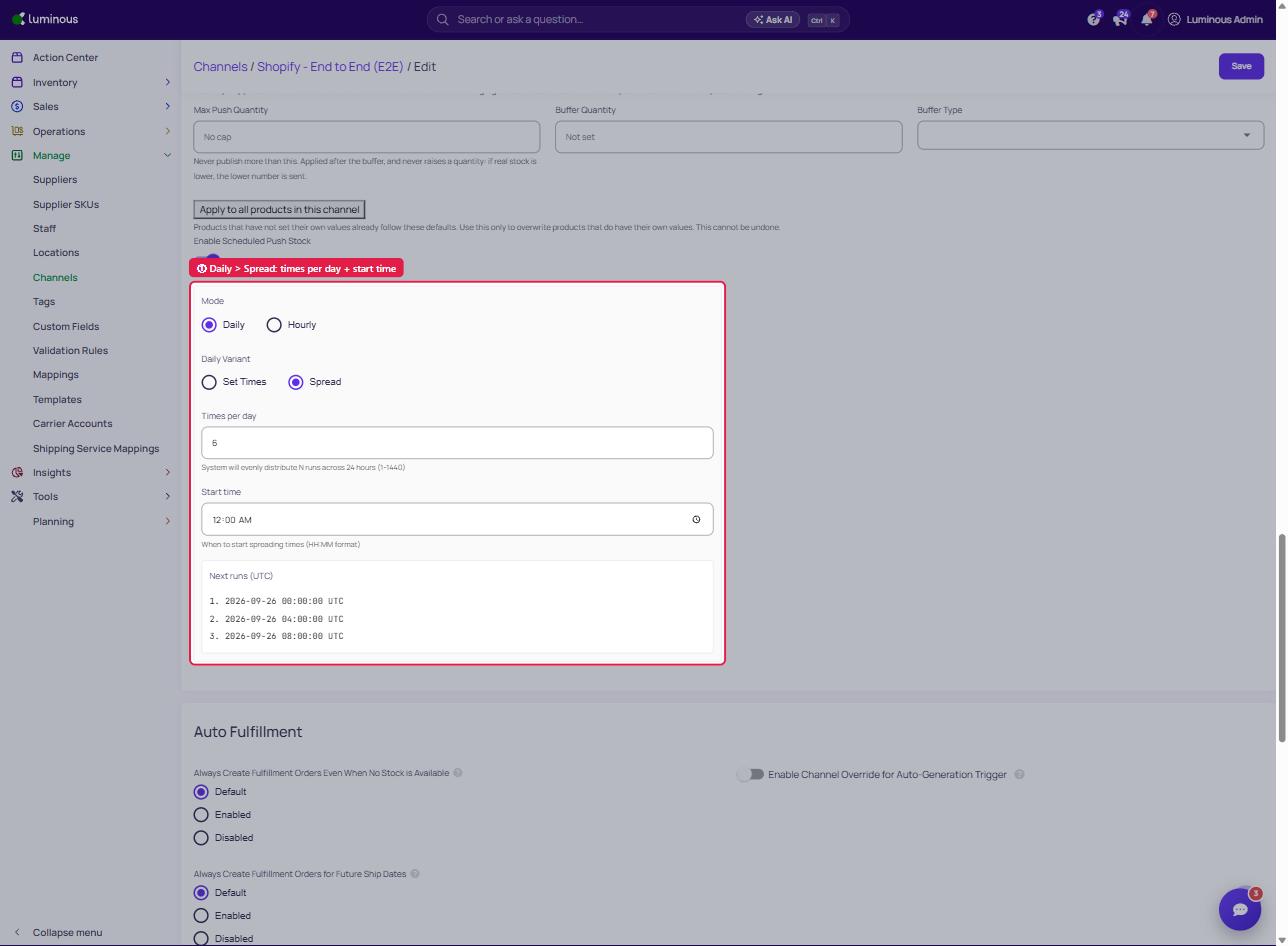
Spread - set how many stock push schedule you prefer and set what time it will start(e.g., 6 times per day starting 12:00 Midnight)
Hourly - let you set every "what: hour you want to push stock and what time you to start (e.g., every 2 hours starting 12:00 Midnight)
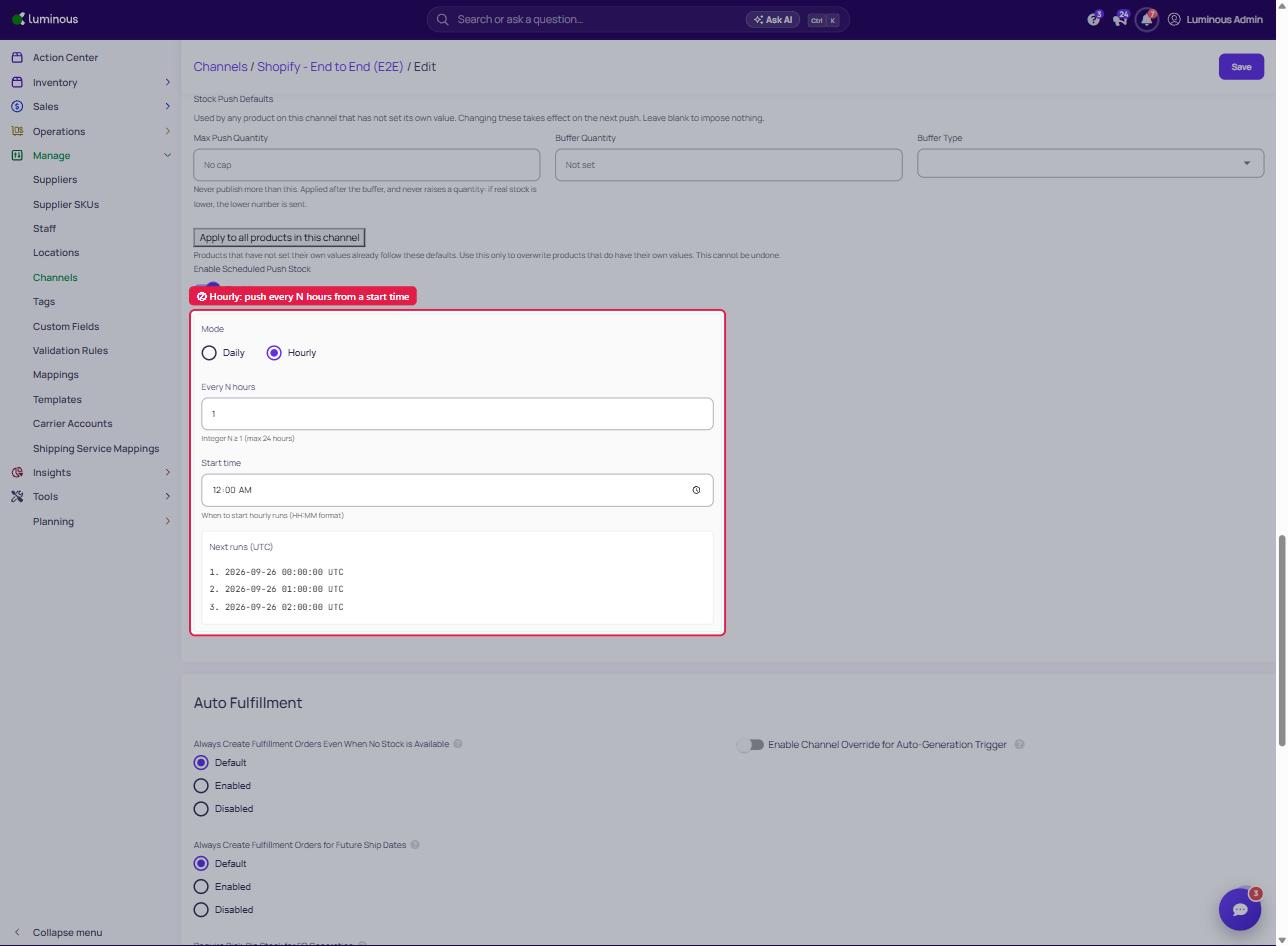
Review the "Next Push Time"—may display in UTC depending on system configuration.
Recommended Push Frequencies
Hourly Push (Recommended)
Best balance between inventory accuracy and system performance.
Helps maintain up-to-date inventory without excessive syncing.
Why Not Push More Frequently Than Hourly
If new orders arrive immediately after a push, inventory may appear temporarily outdated.
More frequent pushes amplify this timing gap without improving accuracy meaningfully.
FAQ's
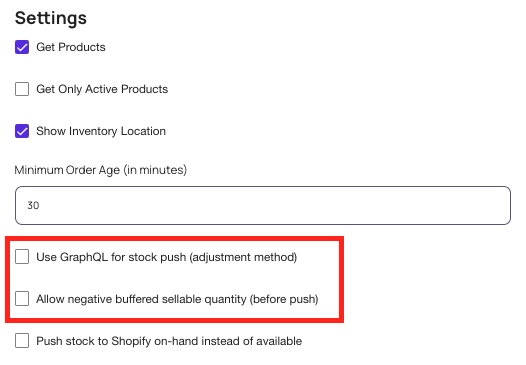
Can I push negative stock quantities to a sales channel? Yes - if you configure it on the integration itself. Click your name in the upper right -> Settings/Integrations -> Edit the integration you want - Check both boxes indicated below to allow the push of negative quantities to the integration