Operations
Last updated: September 30, 2026
Sales Orders
Go to Operations > Sales Order Grid.
Click on the relevant Sales Order
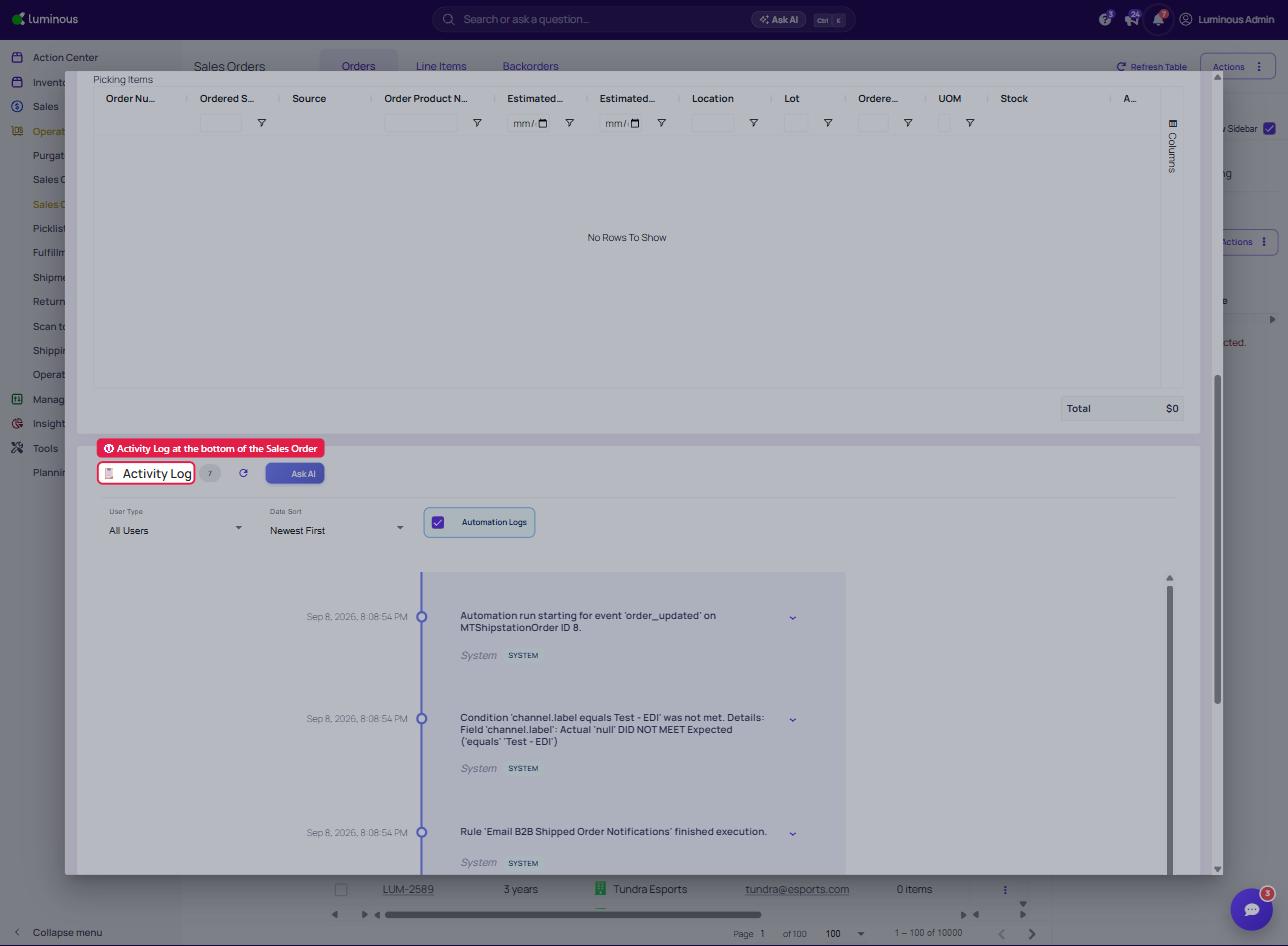
Scroll to the bottom of the order detail page to view the Activity log.
Shows order placement, edits, fulfillment creation, and status updates
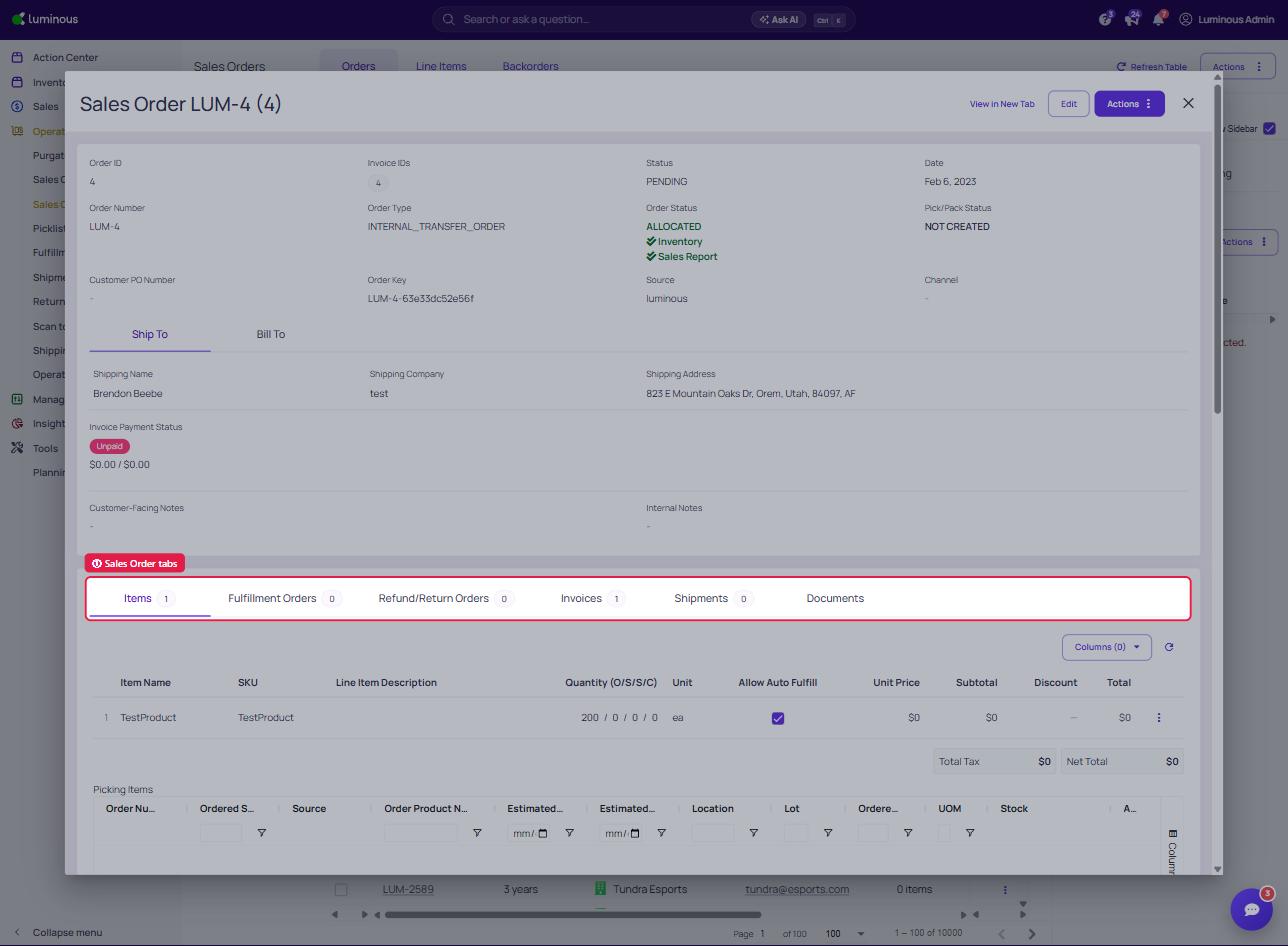
Tabs Available on a Sales Order
When viewing a Sales Order (via Operations > Sales Order Grid), multiple tabs provide detailed insight into the order’s lifecycle — including related documents and activity logs:
Items: Displays all SKUs included in the order, along with quantity, pricing, and inventory movements.
Fulfillment Orders: Lists all Fulfillment Orders generated from this Sales Order. Each entry links to its own detail view and activity log.
Refund/Return Orders: Manage return and refund order.
Invoices: Shows any invoices created from the Sales Order, along with a record of updates and status changes.
Shipments: Displays shipment tracking details and associated activity, such as carrier scans and delivery confirmations.
Each of these tabs helps piece together the full journey of an sales order — from creation to delivery — and complements the main Activity Log for deeper traceability.
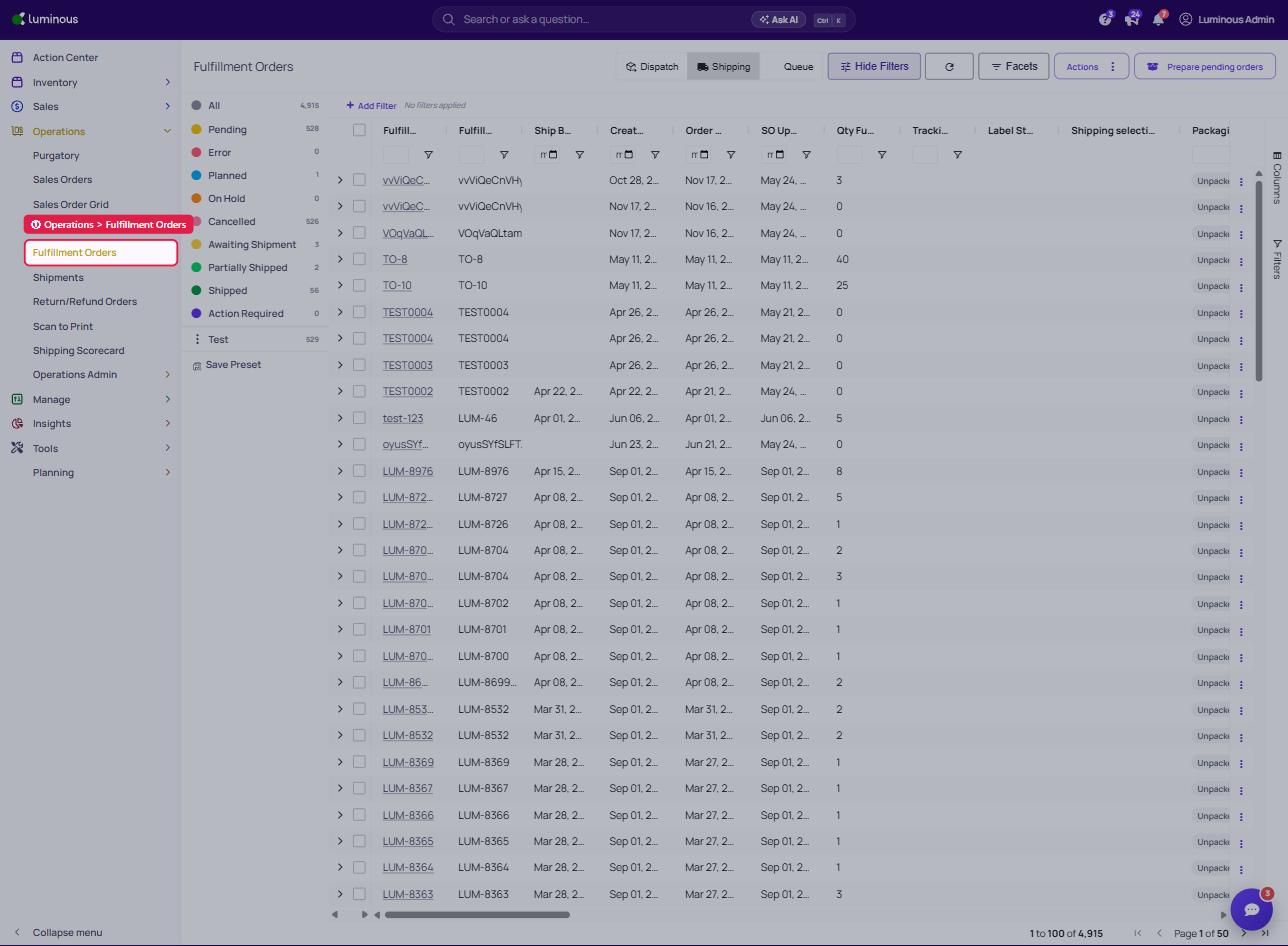
Fulfillment Orders
Go to Operations > Fulfillment Orders.
Select the Fulfillment Order in question.
Scroll to the bottom and click the Activity Log tab.
Displays creation time, updates, who triggered them, and whether actions were manual or automated.