Step 8 — Run your first production run
Last updated: October 11, 2026
Your data is set up — now put it to work. A first run follows this sequence (each links to a full guide):
Create a production run (or a single work order).
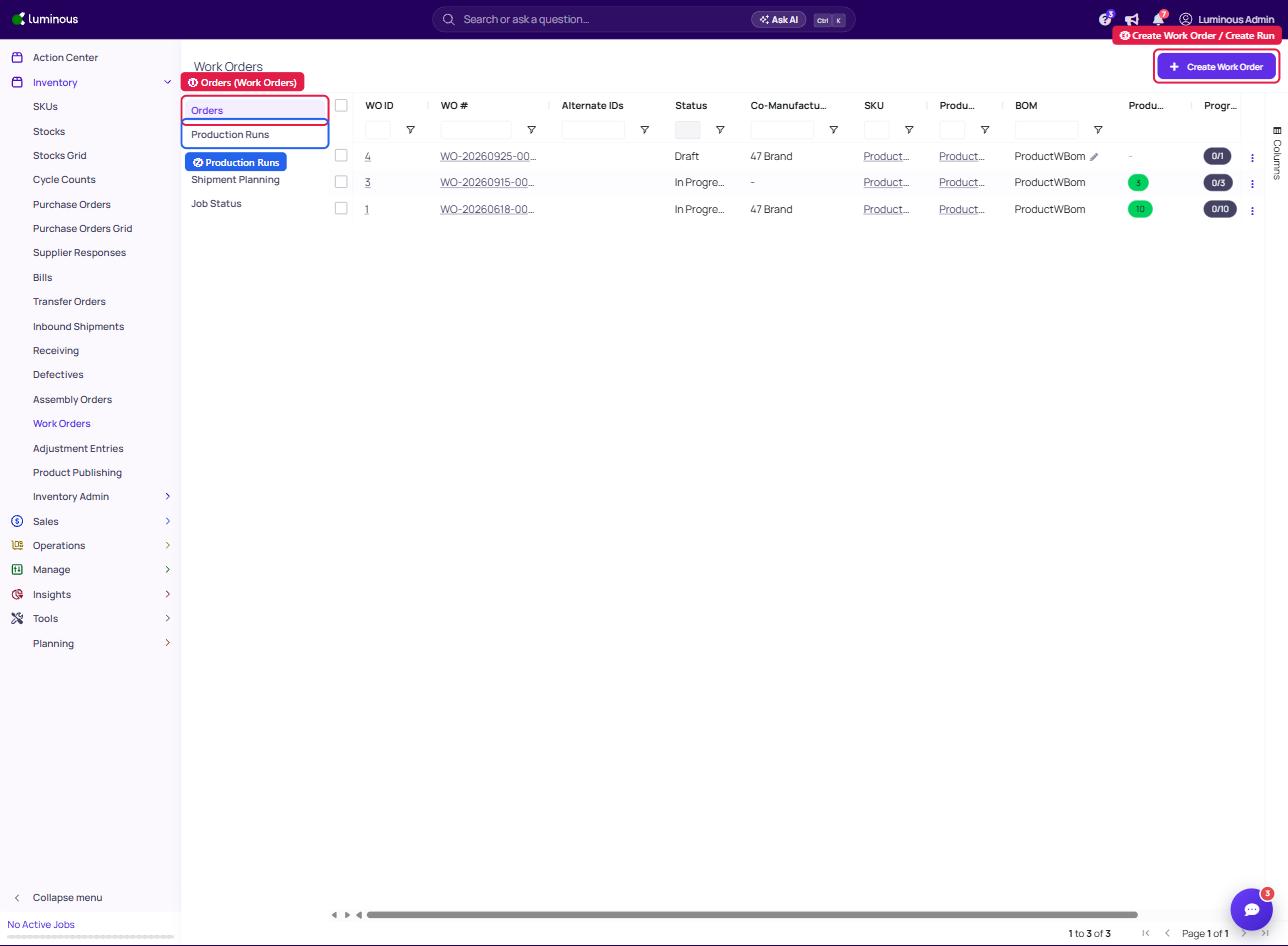
Go to Inventory → Work Orders
Select the Orders tab (Work Order) or the Production Runs tab (Production Run)
Click Create Work Order or Create Run
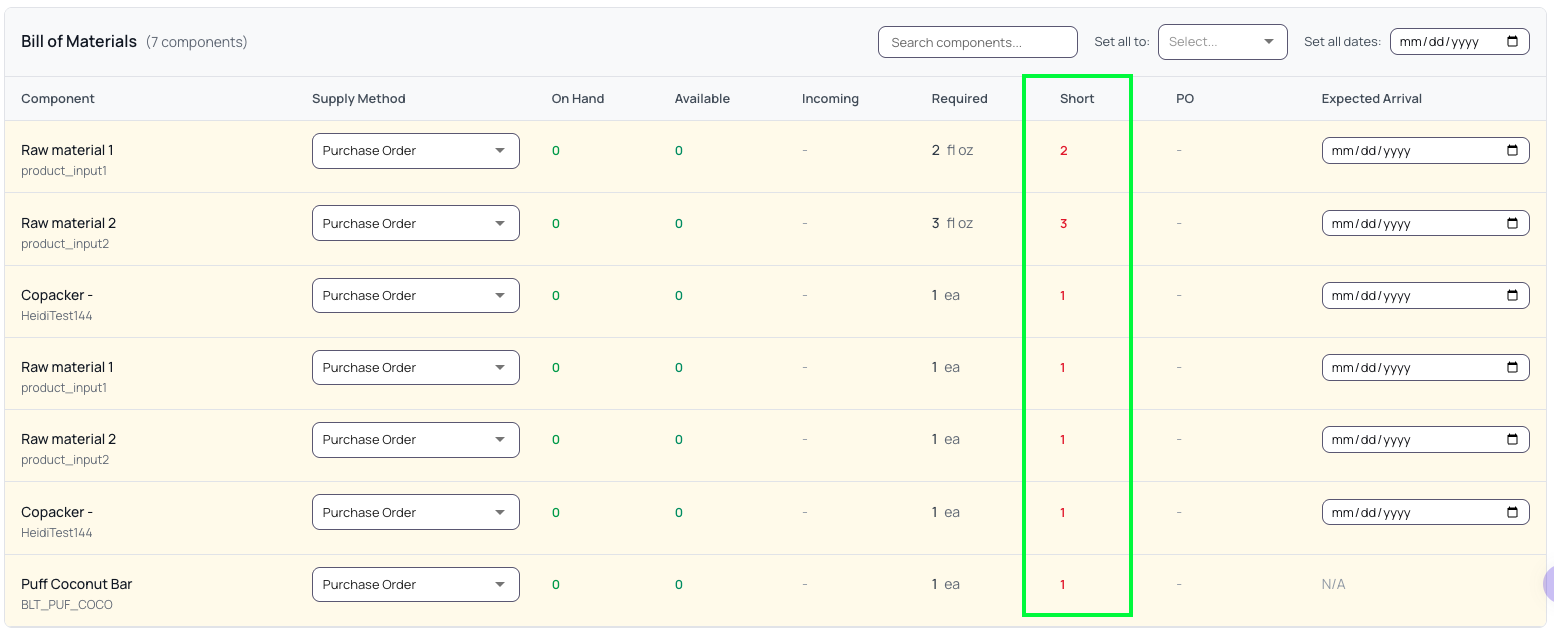
Review shortages and allocate incoming stock, then generate purchase orders for the rest. Background: Understand material shortages.
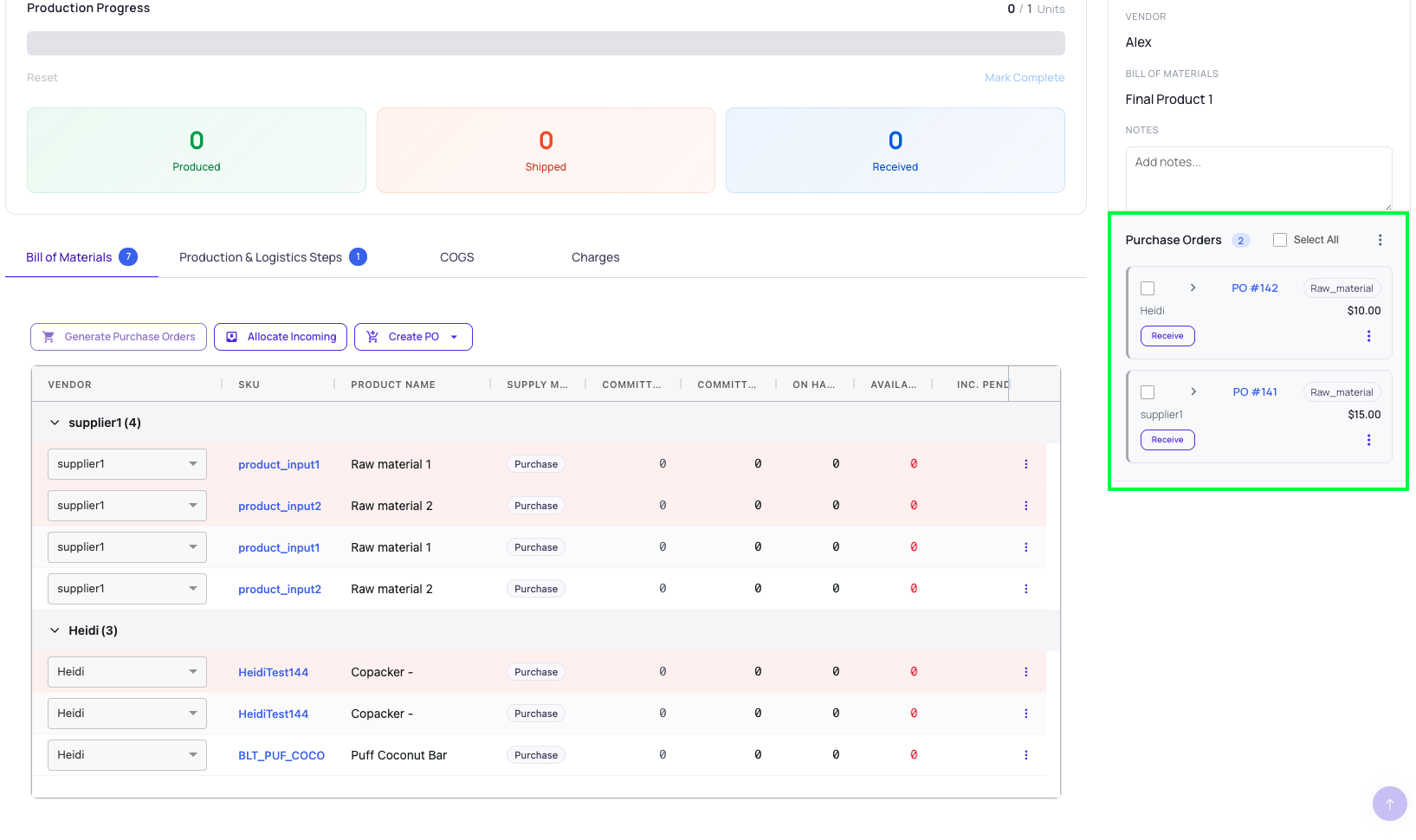
Note: You need to Save the Work Order or Production run first before you can generate Purchase Order.
Receive the raw materials, then move to In Progress to commit stock. Background: Work order statuses.
Receiving the Purchase Raw materials - Click the Receive button.
Clicking the Receive button will automatically redirect you to Receiving Report.
Moving to In Progress to commit stock
Click the Edit button
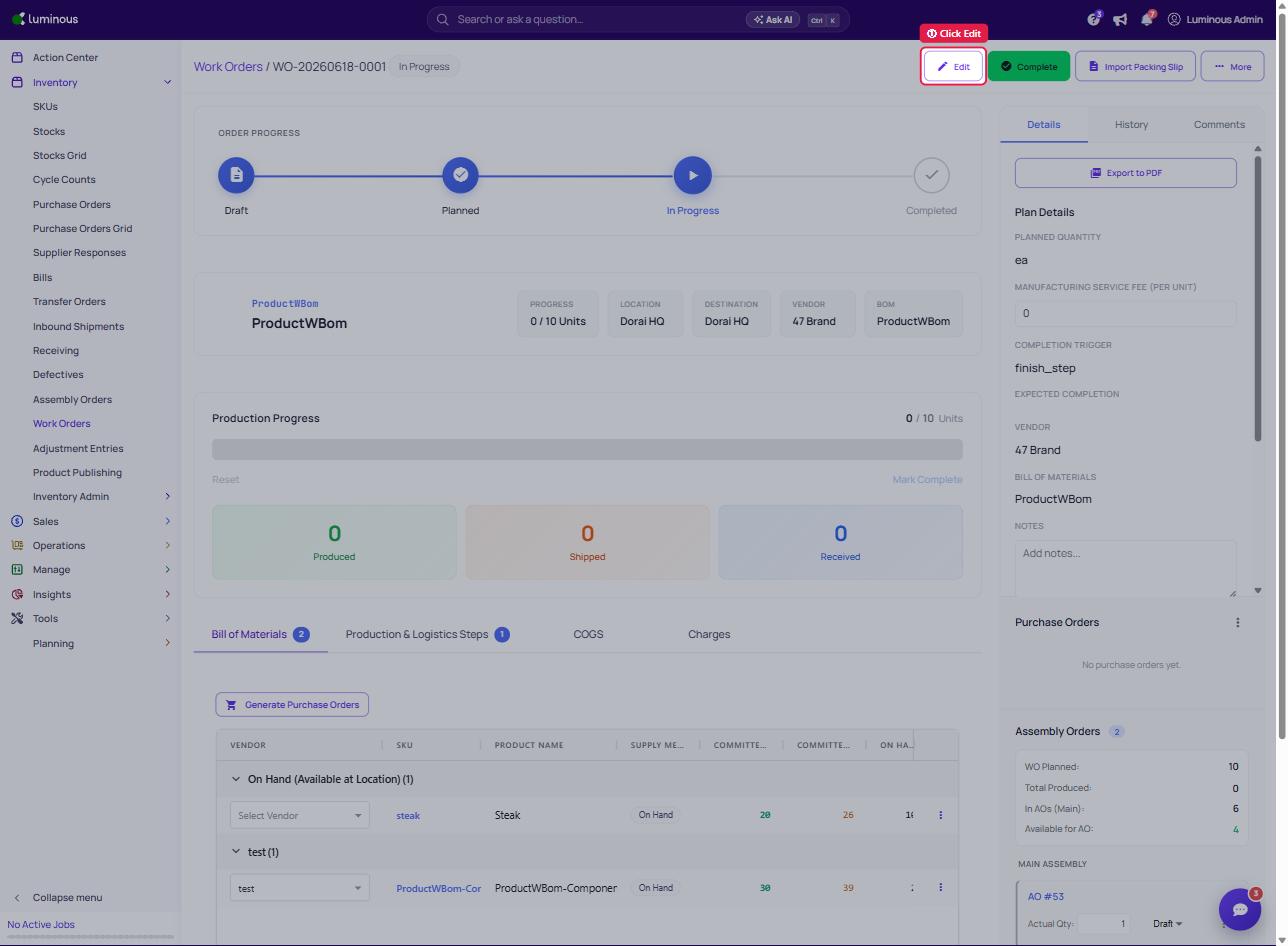
Click the Status - Select In Progress then save.
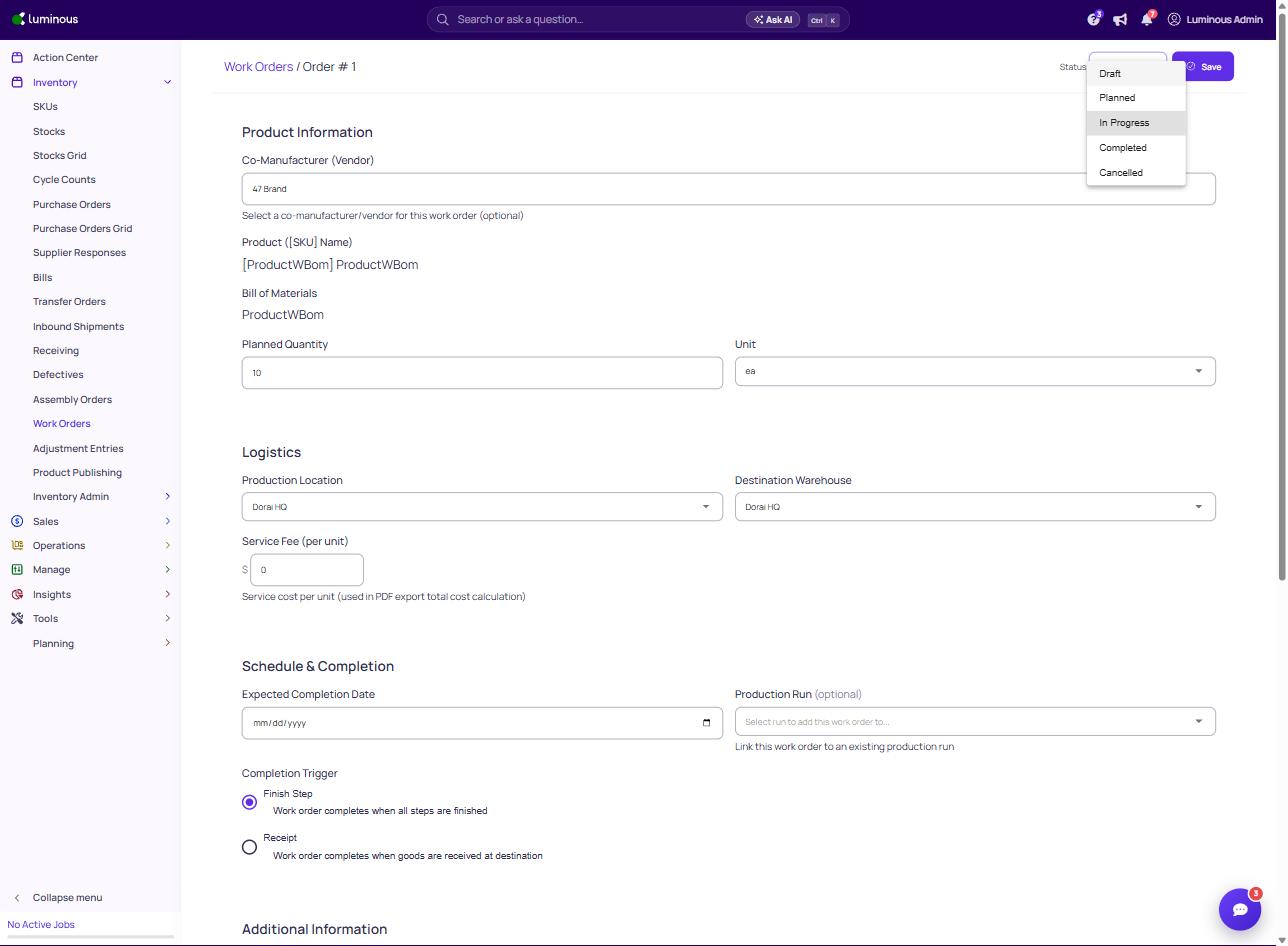
Record production with Quick Complete, then complete the assembly orders (lots & yield).
Recording Production
Go to the Production & Logistics Steps tab then click Report Production.
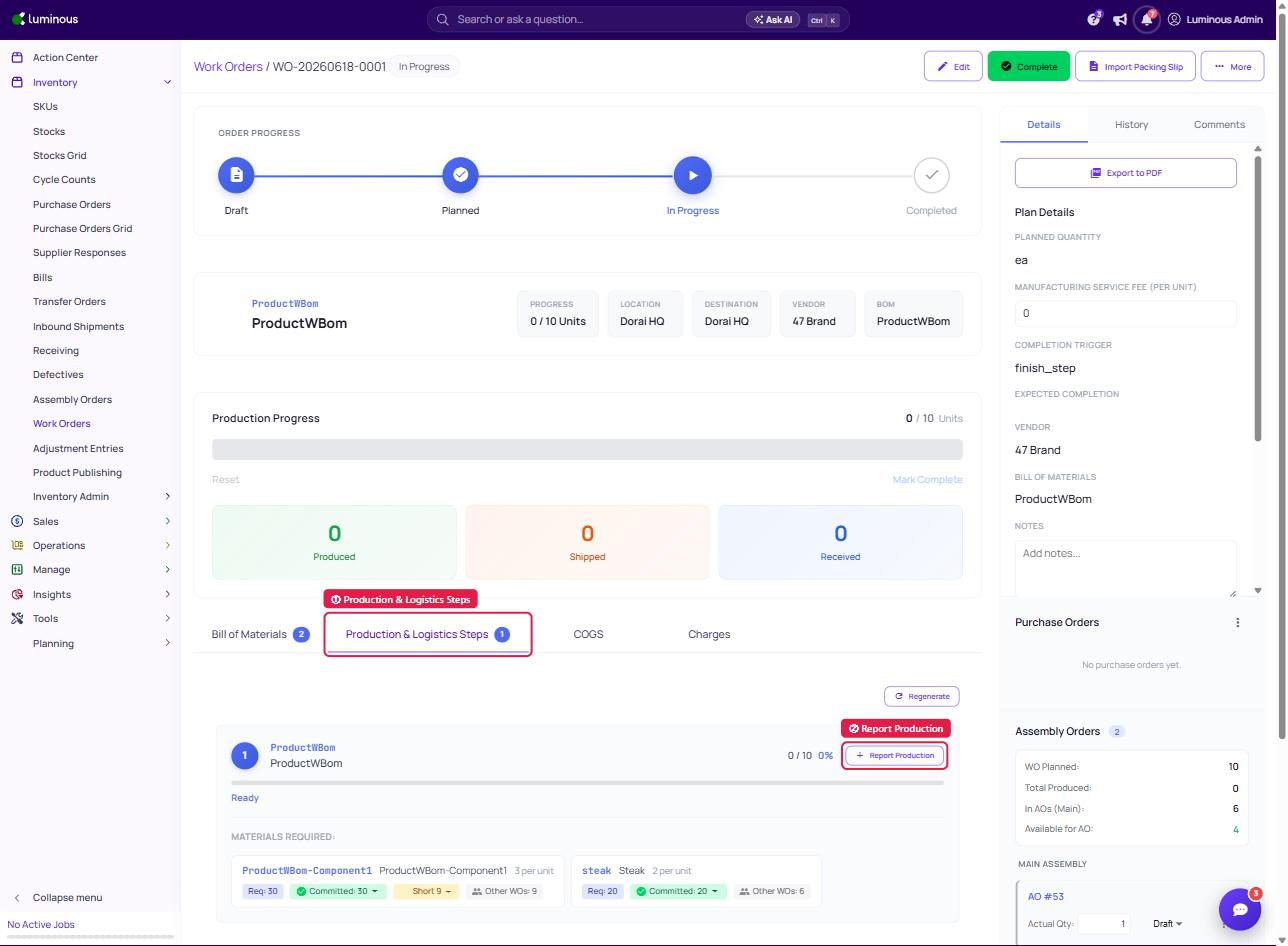
Click Complete Step to Record Production progress
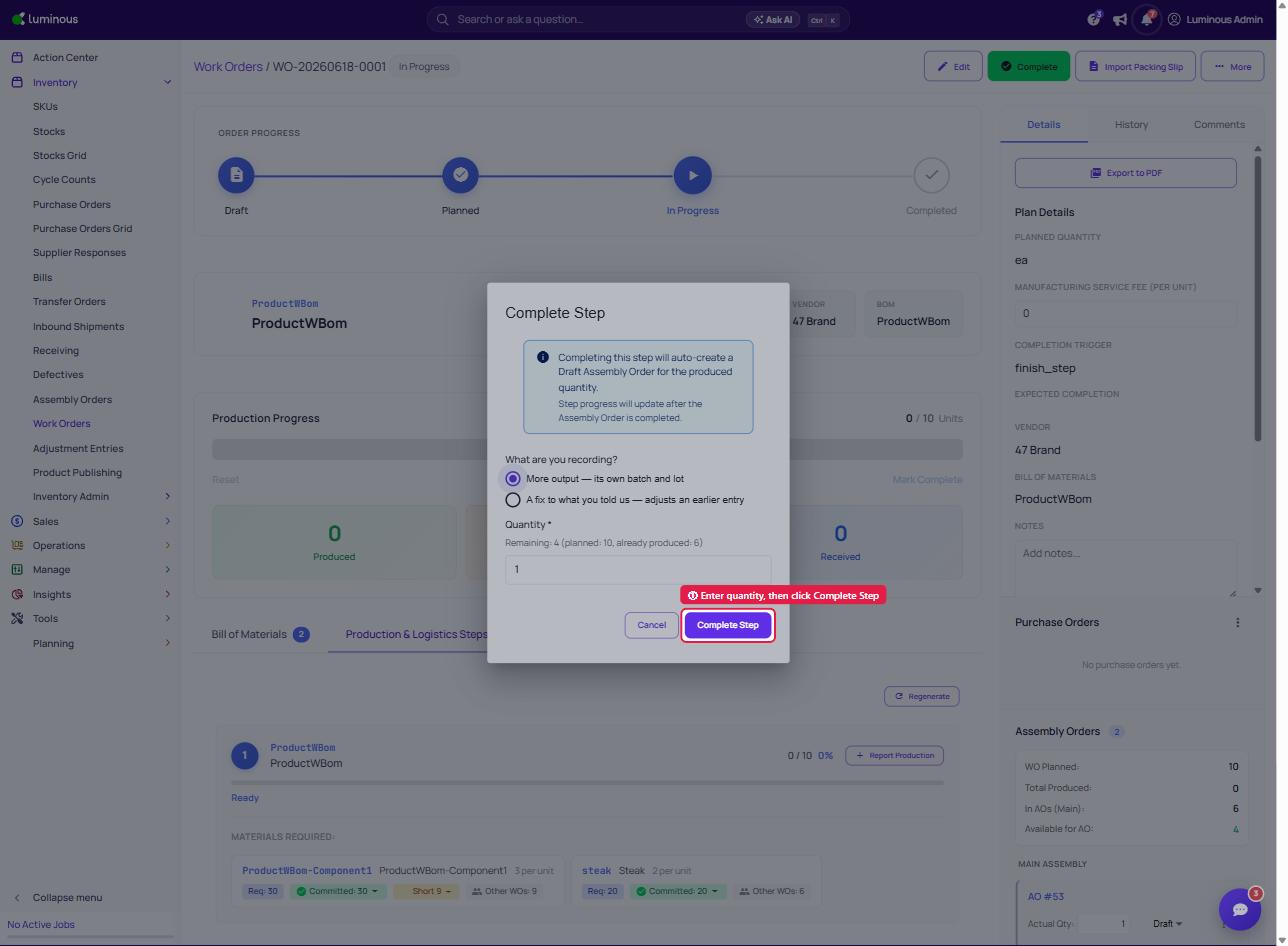
Completing Assembly Order
On the lower right side panel, locate the Assembly Order Section to update the Assembly Order status.
Click the Dropdown and change the status to completed.
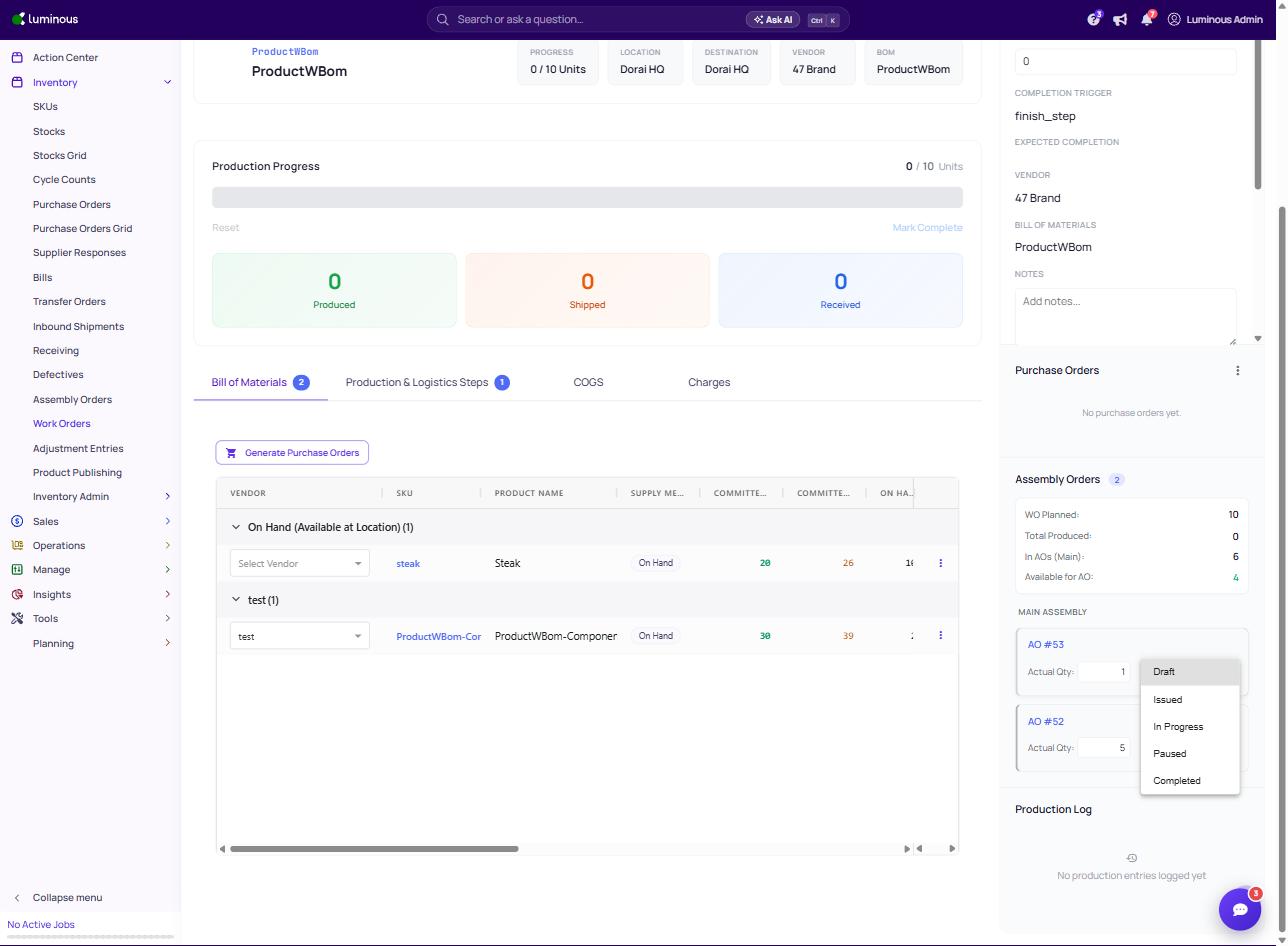
Click the Transfer to Warehouse
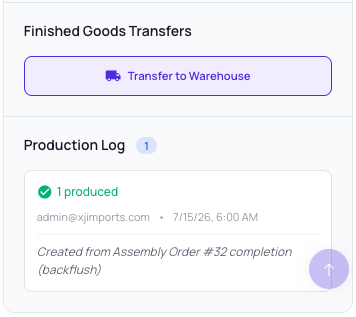
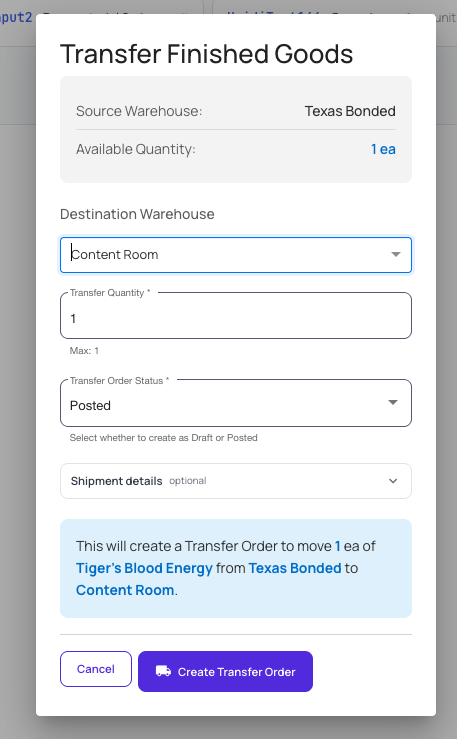
Transfer Finished Goods window will pop-up to create a Transfer Order.
Click Create Transfer Order.
Handy to know on your first run
Over-production is allowed, and you can record scrap.
The production run status is mostly informational — the work-order status carries the logic.
You can import production from a co-manufacturer packing slip.
That's the full loop. Repeat for future runs, and use the FAQ & Troubleshooting collection when you hit a specific question.