How to Update Inventory Quantities in Bulk in Luminous
Last updated: October 11, 2026
Step 1: Access the Inventory Update Tool
Navigate to Tools:
In the left-hand menu, click Tools > Imports.
Select "Inventory Quantities" under the Inventory Operations header
To get the import template, click here:
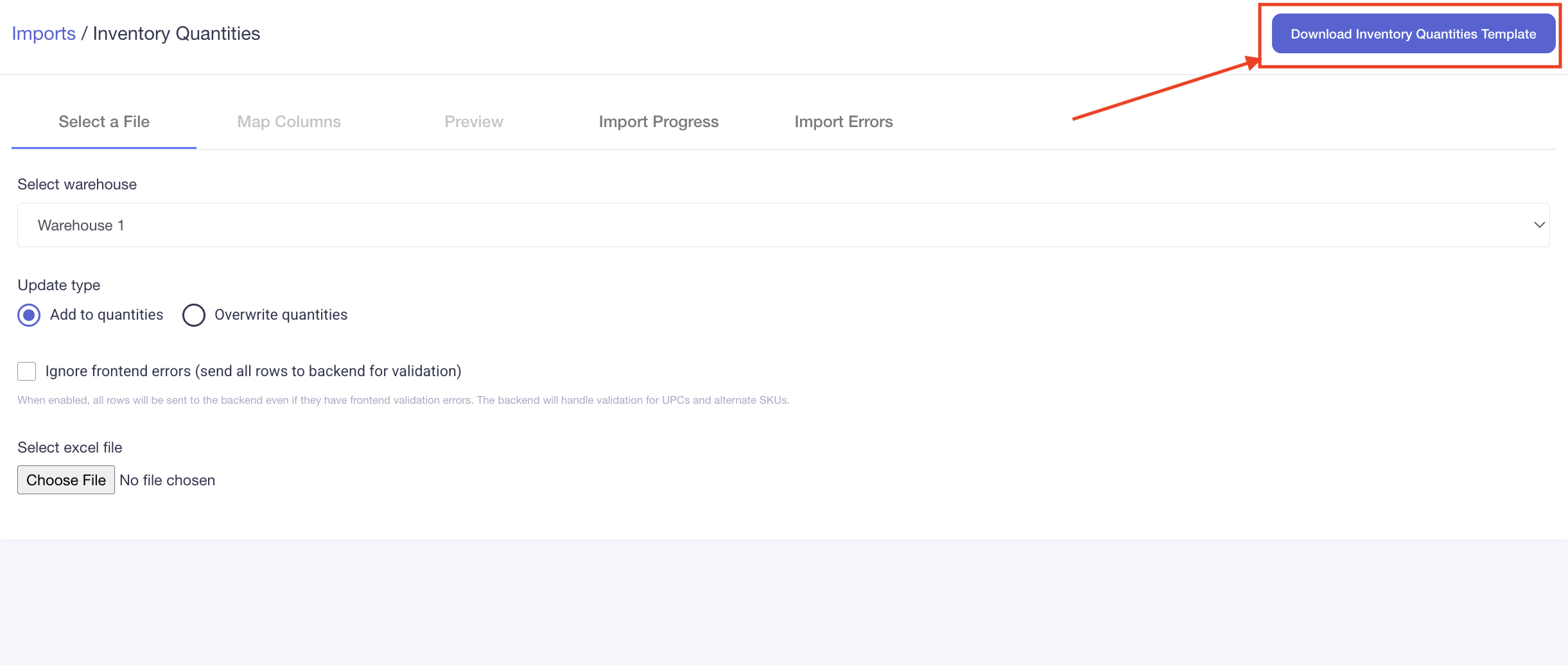
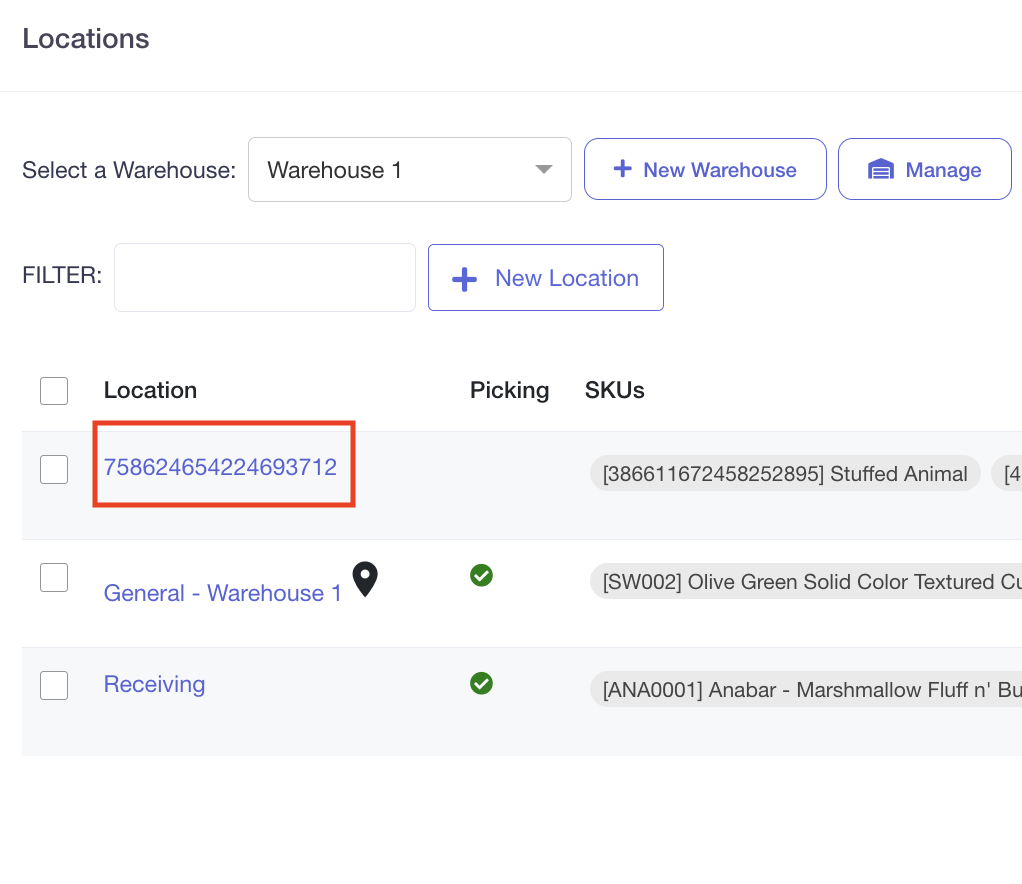
Save the Excel document to your device. IMPORTANT: Verify that it includes the Location name of the warehouse location exactly as it appears in Luminous. This can be found under Manage -> Locations -> select the warehouse from the drop down menu and see what the location is called here:
Step 2: Configure/Create the Import Document (Excel xlsx doc preferred)
Select the Warehouse:
Choose the warehouse where you want to update inventory quantities.
Example: Warehouse Main.
Choose the Update Type:
Add to quantities: Adjusts inventory by adding the specified quantities to the current totals.
Overwrite quantities: Replaces the current inventory quantities with the new values.
Recommendation: Use Overwrite Quantities for initial imports or inventory counts.
Step 3: Prepare Your Data
Export Existing Quantities (Optional):
If inventory data is already in the system, click the Export button in the top-right corner to download a template of current inventory levels.
Use a Custom File (Optional):
You can use an existing file with your inventory data.
Ensure it includes the required fields for mapping.
Step 4: Fill Out Required Fields
To successfully update inventory quantities, ensure your file contains the following fields:
SKU: The unique identifier for the product.
Quantity on Hand: The updated inventory quantity.
Location: (Required if you track inventory by bins) Specify the location where the inventory will be stored.
Lot Tracking (If applicable):
Include additional fields such as:
Lot Number
Production Date
Expiration Date
Step 5: Import the Data
Choose a File:
Upload your file by clicking Choose File and selecting the inventory data file from your computer.
Map the Columns:
Match the columns in your file to the required fields in Luminous.
Ensure all required fields, such as SKU, Quantity on Hand, and Location, are properly mapped.
Start the Import:
Click Submit to begin the bulk update.
By following these steps, you can efficiently update inventory quantities in bulk, ensuring accurate tracking and management of your inventory in Luminous.