Accounting Performance Dashboard: How to Review Month-End Performance
Last updated: October 11, 2026
Overview
The Accounting Performance Dashboard provides a complete view of financial performance and data accuracy for a selected period. It helps accountants and managers review revenue, cost of goods sold (COGS), inventory value, and identify any issues that may impact month-end close.
This dashboard is designed to answer two key questions:
What happened this month financially?
Can these numbers be trusted for closing the books?
Who this is for
Accountants responsible for month-end close
Owners and managers reviewing business performance
Access the Accounting Performance Dashboard
Go to Insights > Accounting
Select Close the Books
Choose the period with This month, Last month, or Custom (the Close through month)
Review Month-End Summary
The top banner provides a quick snapshot of close readiness:
Date Range – Selected reporting period
Close Status – Ready, Not Ready, or Ready with Warnings
Sales Orders Missing COGS – Orders that may impact accuracy
Large Variances – Detected inconsistencies in financial data
Last Updated – Most recent data sync
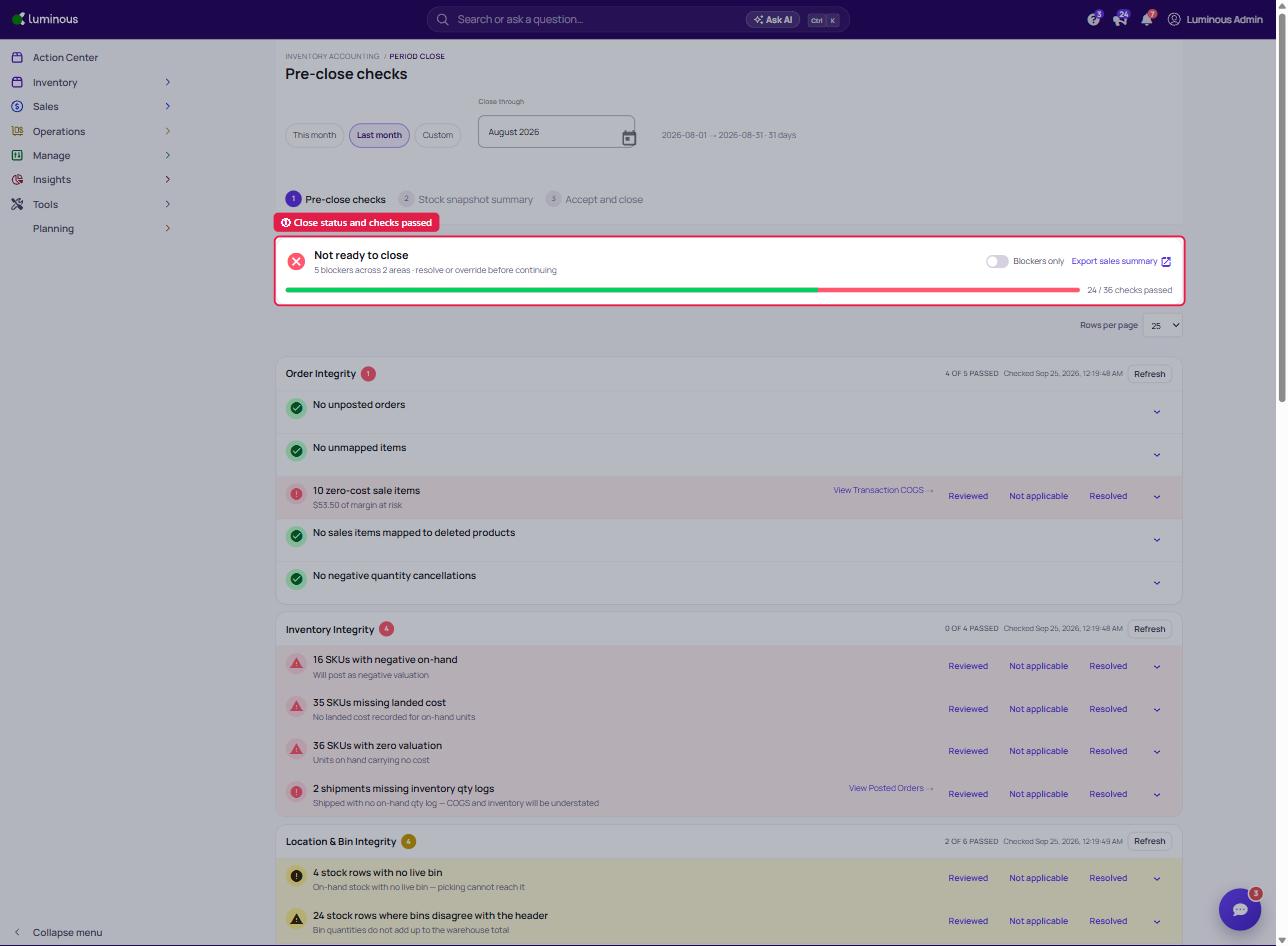
Use this section to quickly assess whether the books are ready to close.
Understanding Status Indicators
Green checkmark – Check has passed
Red warning / BLOCKING – Issue must be resolved before closing
Progress indicator (e.g., 18/20 checks passed) – Shows overall readiness
If any section shows “Not Ready to Close”, at least one blocking issue remains.
Analyze Financial Performance
The Financial Snapshot highlights key metrics:
Total Revenue
Total COGS (with link to detailed report)
Gross Profit
Gross Margin %
Additional metrics may include:
Returns and refunds
Discounts applied
Ending inventory value
Inventory turnover
These metrics help evaluate profitability and overall performance.
Review Sales & Channel Performance
Understand how sales are distributed across channels:
Key metrics:
Total Net Revenue
Sales Count
Units Sold
Average Order Value (AOV)
Sales by Channel:
Shopify
Amazon
B2B / Wholesale
Each channel includes revenue, order volume, units sold, and AOV to compare performance.
Evaluate Returns, Refunds, and Discounts
This section highlights factors that impact margins:
Returns (count and percentage)
Returned COGS
Refunds (value and percentage)
Discounts Given
Use this data to understand revenue adjustments and margin changes.
Review Inventory & Fulfillment
Monitor inventory value and operational performance:
Inventory Metrics:
Ending Inventory Value
SKUs in Stock
Units in Stock
Inventory Turnover
Deadstock Value
Inventory Reconciliation:
Starting Value
COGS
Receipts
Adjustments
Ending Value
This ensures inventory balances match financial records.
Fulfillment Metrics:
Orders Received vs. Shipped
Unfulfilled Orders
Average Shipping Cost (if available)
Average Fulfillment Time
Identify Data Issues & Close Readiness
The dashboard highlights issues that may affect reporting accuracy:
Missing or incomplete data (e.g., orders without COGS)
Inventory discrepancies
Large financial variances
Each issue includes a link to investigate and resolve it.
Order Integrity
Validates that all sales order data is complete and accurate:
No unposted orders
No unmapped items
No zero-cost sale items
No negative quantity cancellations
How to fix the identified issues (highlighted in RED) in Order Integrity
Click the field highlighted in red to view all SKUs that require correction.
Note: There should be either Estimated Landed cost or Cost Layer associated in your SKU to fix this error.
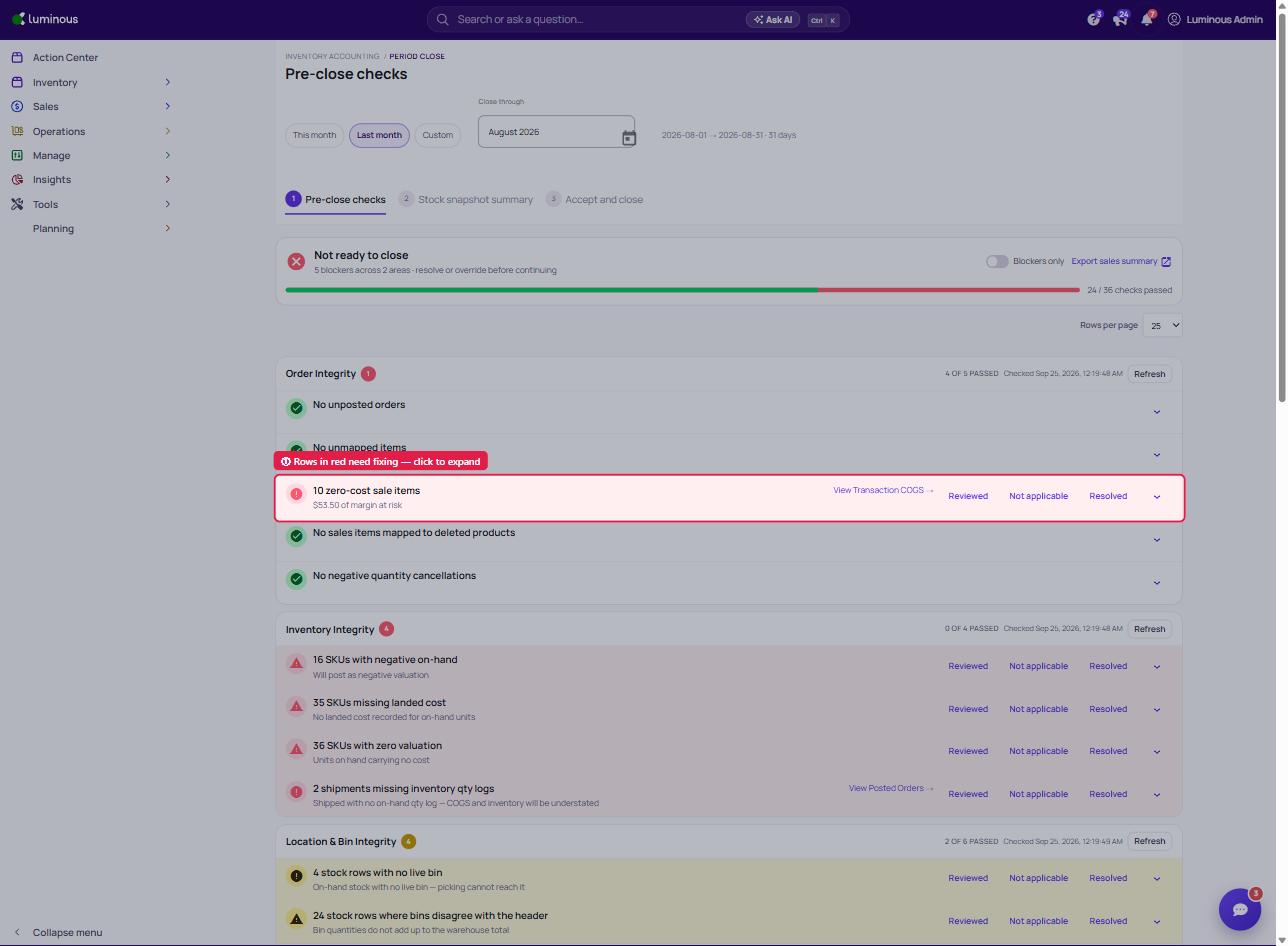
Select SKUs to Fix
Tick the checkbox beside the SKUs to select SKU or tick multiple checkboxes to fix multiple SKU at once
Choose a Fix Method
There are two available options:Option 1: Use ELC (Estimated Landed Cost)
Refer to the Suggested ELC column
Refer to the displayed value to update the SKU
Option 2: Use cost layer (Recommended)
Refer to the Suggested Cost Layer column
Refer to the indicated amount to correct the SKU
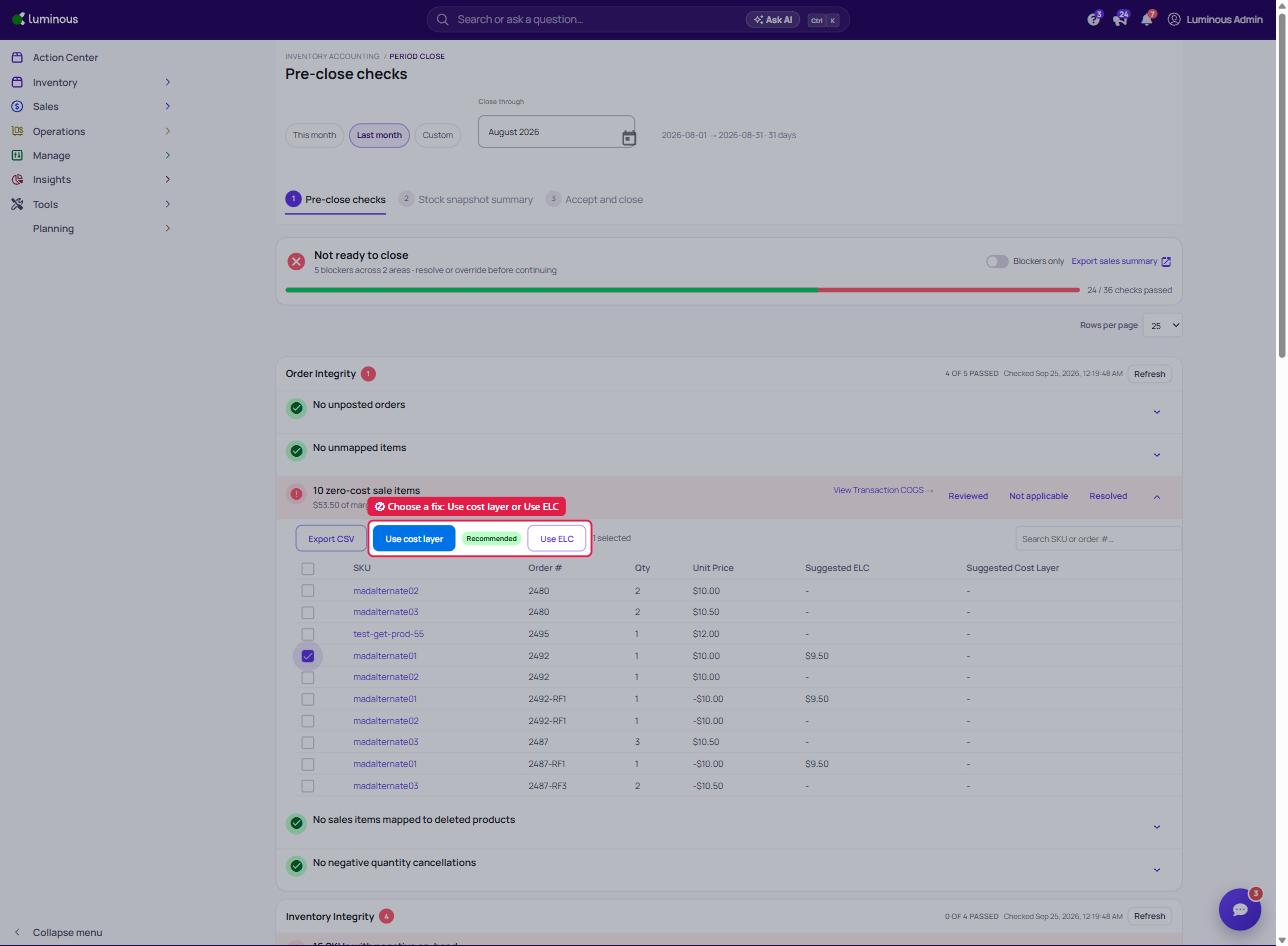
Once you select the fix method, a pop up window will appear to confirm your action.
Inventory Integrity
Ensures inventory data is accurate:
No negative on-hand inventory
All SKUs have valid inventory valuation
How to fix Inventory Integrity Accuracy
Option 1: Fix Inventory Per SKU
Navigate to the SKU with an error
Click the SKU to open the SKU Details Page
Click Edit
Locate the Estimated Landed Cost (ELC) field
Enter the correct value
Click Save
Repeat this process for each affected SKU.
Option 2: Bulk Fix via Export & Import
Step 1: Export Products with Errors
Go to the Close the Books page
Click Export CSV
Download the file containing all SKUs with errors
Step 2: Update the File
Open the file in Excel
Locate the Estimated Landed Cost column
Enter the correct values for each SKU
Save the file as .xlsx
Step 3: Import Updated File
Return to the Close the Books page
Ensure that you indicate the date rage before importing a file or your import will fail
Apply SKU Costs to Period:
Each row maps a SKU to a unit cost
All sales items with that SKU and order date in the range will be updated
Cost = quantity × unit cost per line
Both from_date and to_date are required
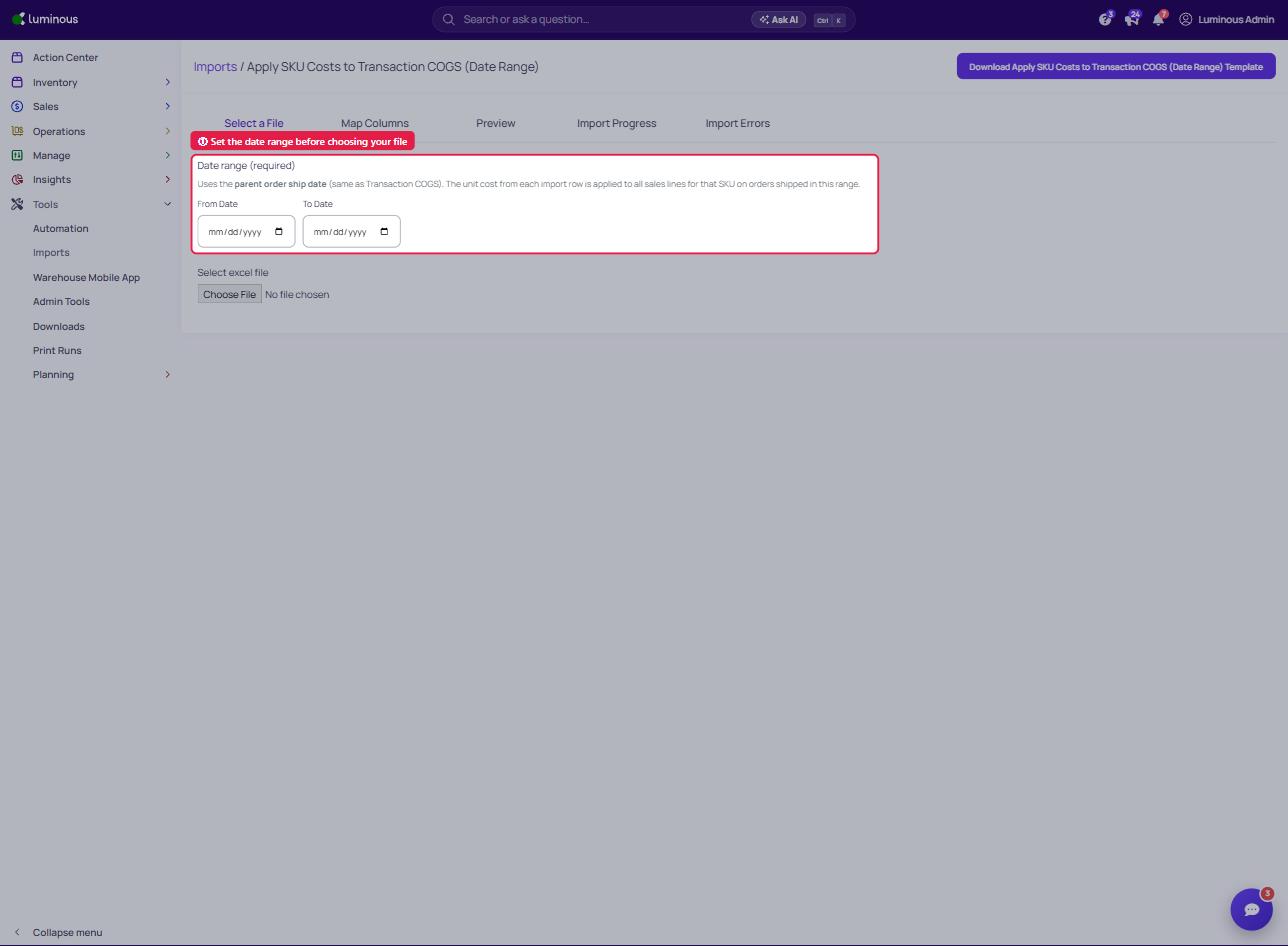
Click Import Costs (under the SKUs with zero valuation check)
Upload the updated .xlsx file
Step 4: Map Fields
Map the following fields:
SKU → Master SKU
Estimated Landed Cost → Unit Cost
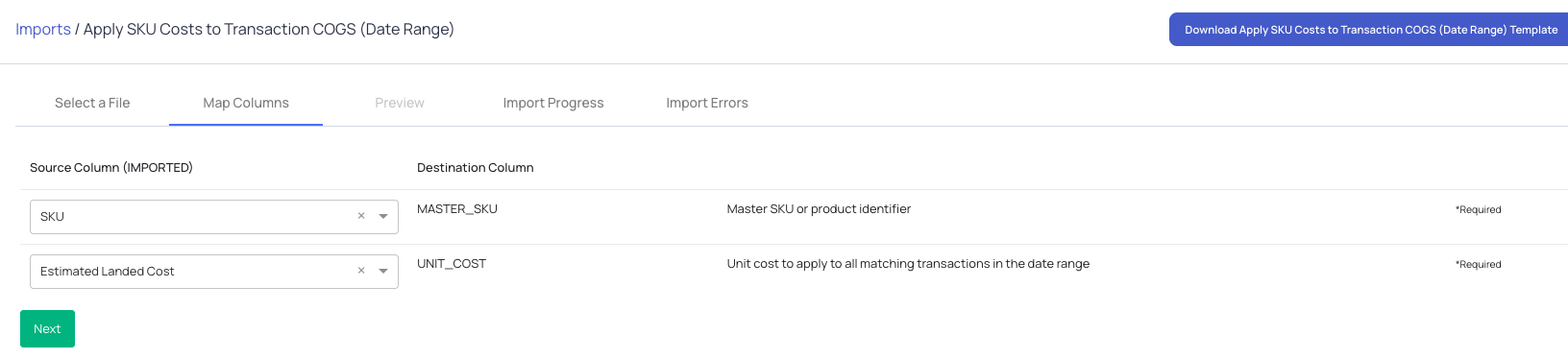
Click Next
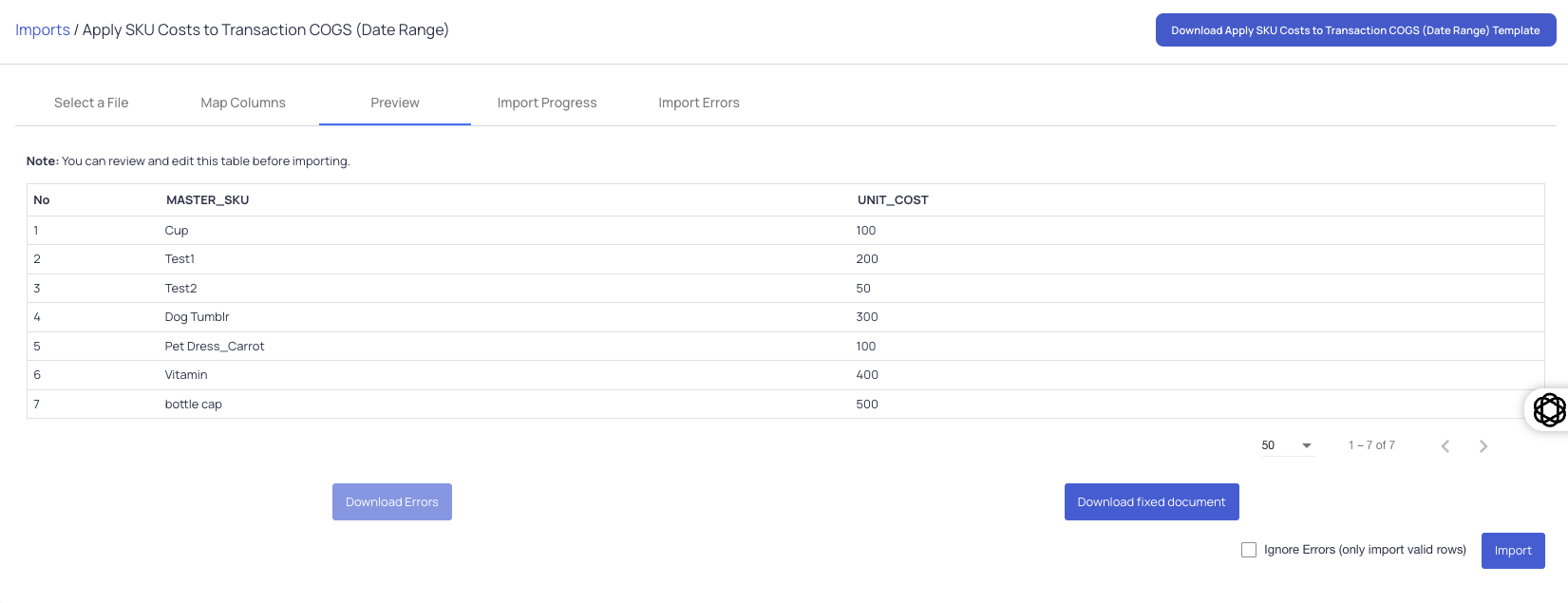
Step 5: Review and Import
Review for any errors
Make corrections if needed
Click Import to finalize
Accounts Payable
Confirms vendor-related financial data is complete:
No unposted bills
No open bill variances
All posted bills reconciled
No bills on hold
No uninvoiced receipts (GR/IR)
No unapplied vendor credits or prepayments
No QuickBooks sync errors
Sync & Integration Health
All channels syncing
No invoice sync errors
No failed webhooks
Invoice & Shipment Integrity
No partially invoiced shipped orders
No over-invoiced orders
No over-shipped orders
Tips & Best Practices
Review this dashboard before closing the books each month
Resolve all blocking issues before finalizing financials
Use drill-down links to validate key numbers
Pay close attention to missing COGS and inventory discrepancies
FAQs
Q: Why are my COGS incomplete?
A: Some sales orders may be missing cost data. Use the provided link to review and update affected orders.
Q: Can the dashboard be used for forecasting?
A: No. This dashboard is designed for financial review and close, not inventory planning or forecasting.
Q: Why don’t my numbers match external reports?
A: Check for missing data, sync delays, or unposted transactions that may impact totals.
Q: Upon import, it says there are no order on that date range for that SKU. What should I do?
A: Click the the download button, it will only download what is missing or SKU that has an error. Go back to the "Select a file" step and change the date range.
Need help?
Contact the support team for further assistance.