How to Set Up QuickBooks Revenue Account Mapping in Luminous
Last updated: October 11, 2026
Overview
This guide explains how to set up revenue accounts and map them to QuickBooks Online (QBO) so invoices sync correctly.
QuickBooks requires each invoice line to use a product or item tied to a General Ledger (GL) account. Luminous uses revenue account mapping to ensure invoices post to the correct account automatically.
Why This Setup Is Important
Ensures revenue is recorded in the correct General Ledger account
Reduces manual corrections after sync
Keeps financial reporting consistent
Allows flexible defaults (global, channel, invoice-level)
Step 1: Create Revenue Accounts (Chart of Accounts)
Navigate to:
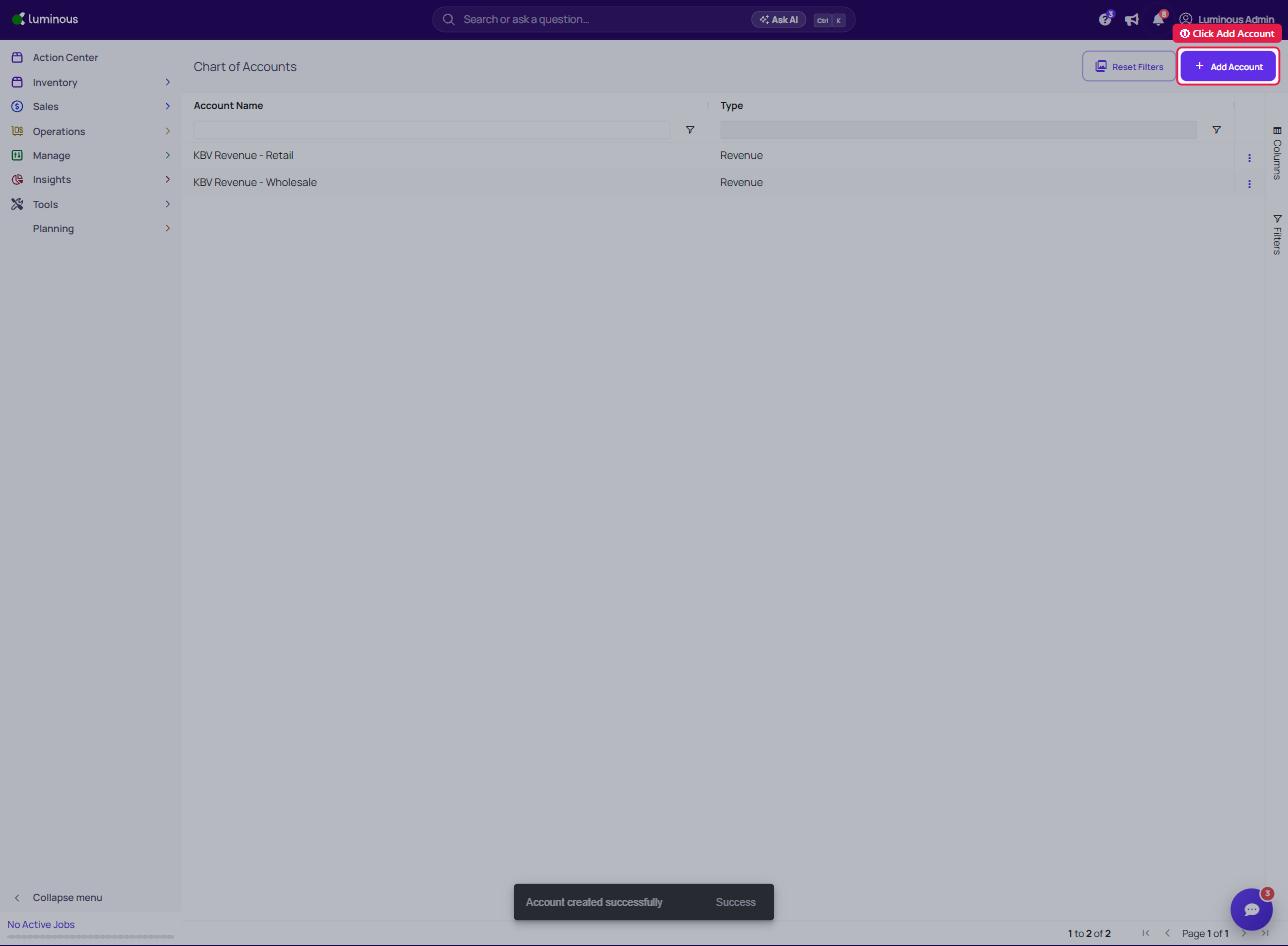
Go to Manage → Chart of Accounts
Steps:
Click Add Account
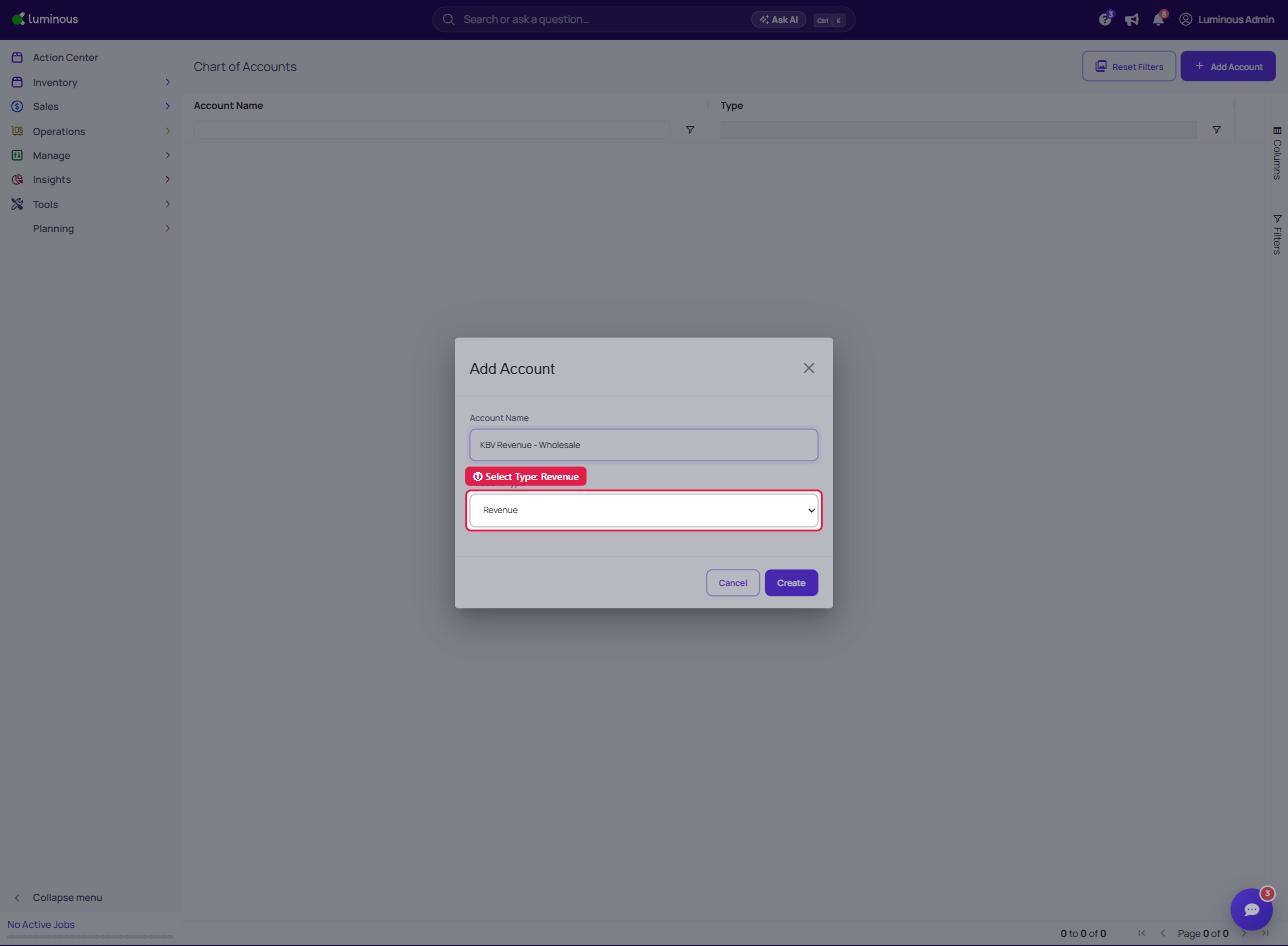
Enter an Account Name
Select Type:
From the dropdown select Revenue
Click Create
Step 2: Set a Global Default Revenue Account
Navigate to:
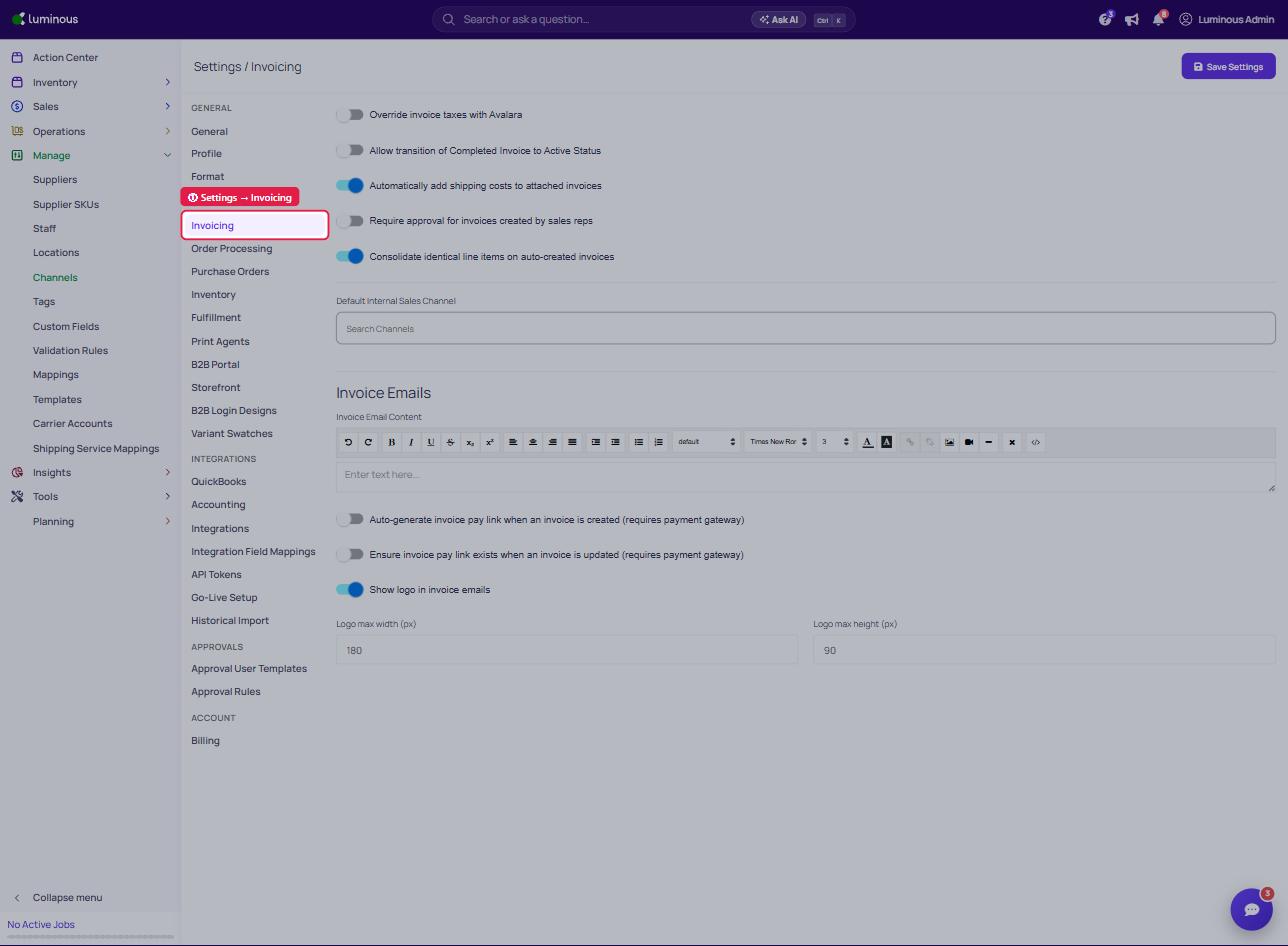
Go to Settings → Invoicing (open Settings from the user menu at the top right)
Steps:
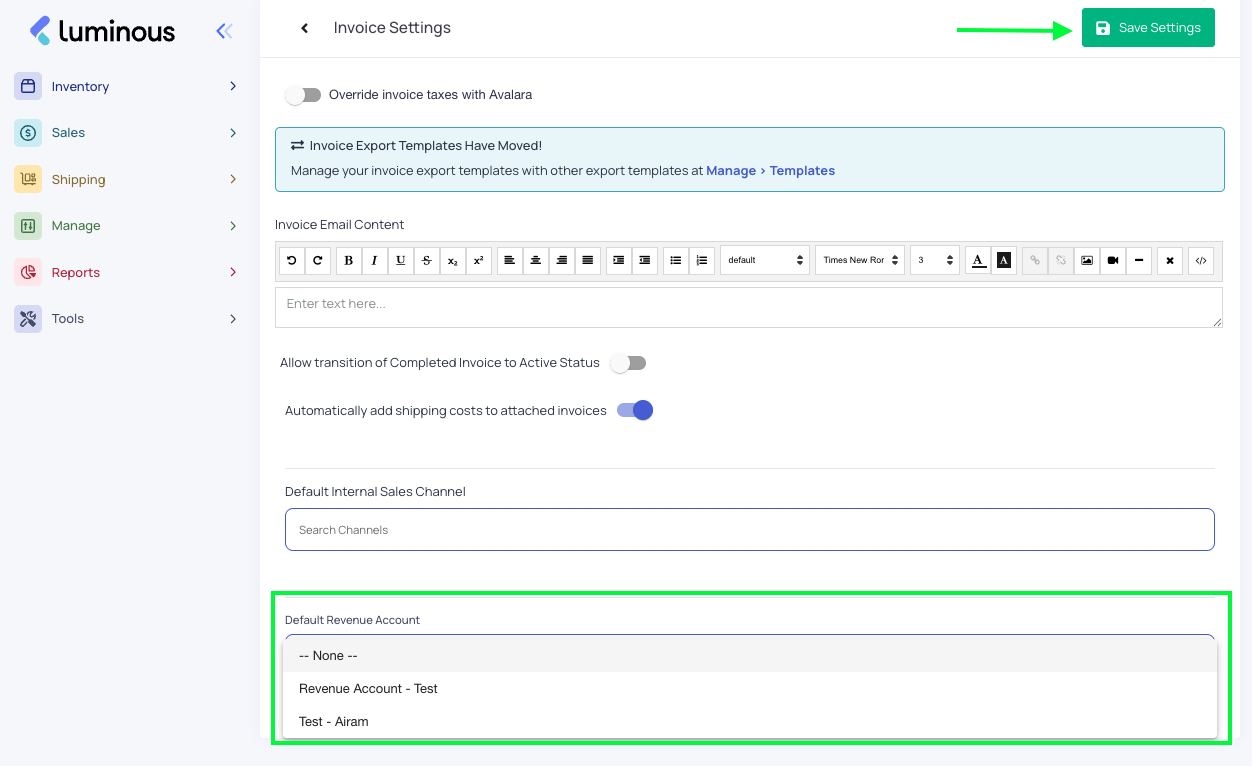
Locate Default Revenue Account
Select a revenue account
Note: Ensure you add account on "Chart of Accounts" first.
Click Save Settings
Note:
Used as a fallback when no other account is set.
Step 3: Configure Revenue by Sales Channel (Optional)
Navigate to:
Go to Manage → Channels
Steps:
Select a sales channel to configure
Click three dots to edit or
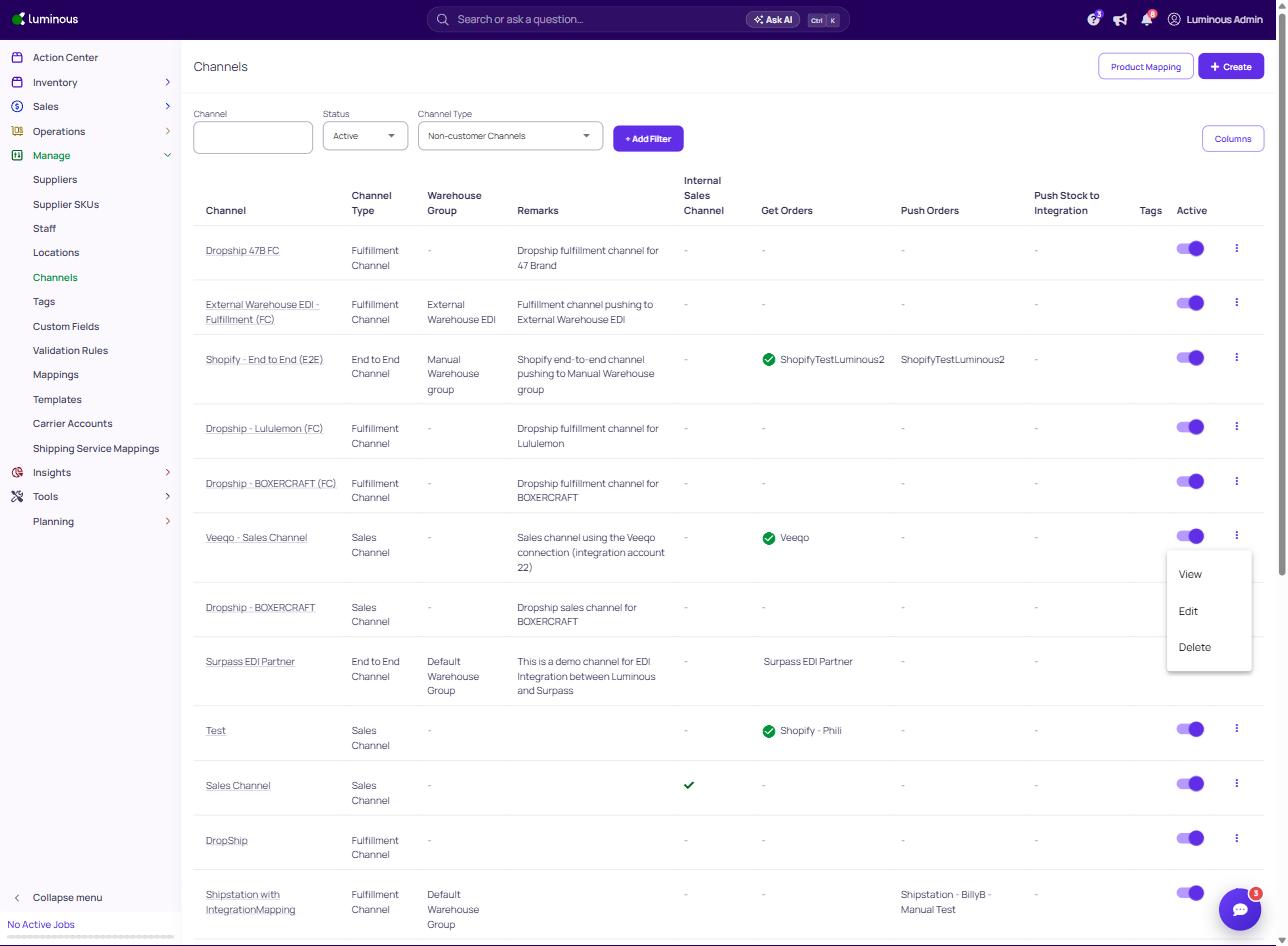
b. Select and open the Sales channel and click the Edit button
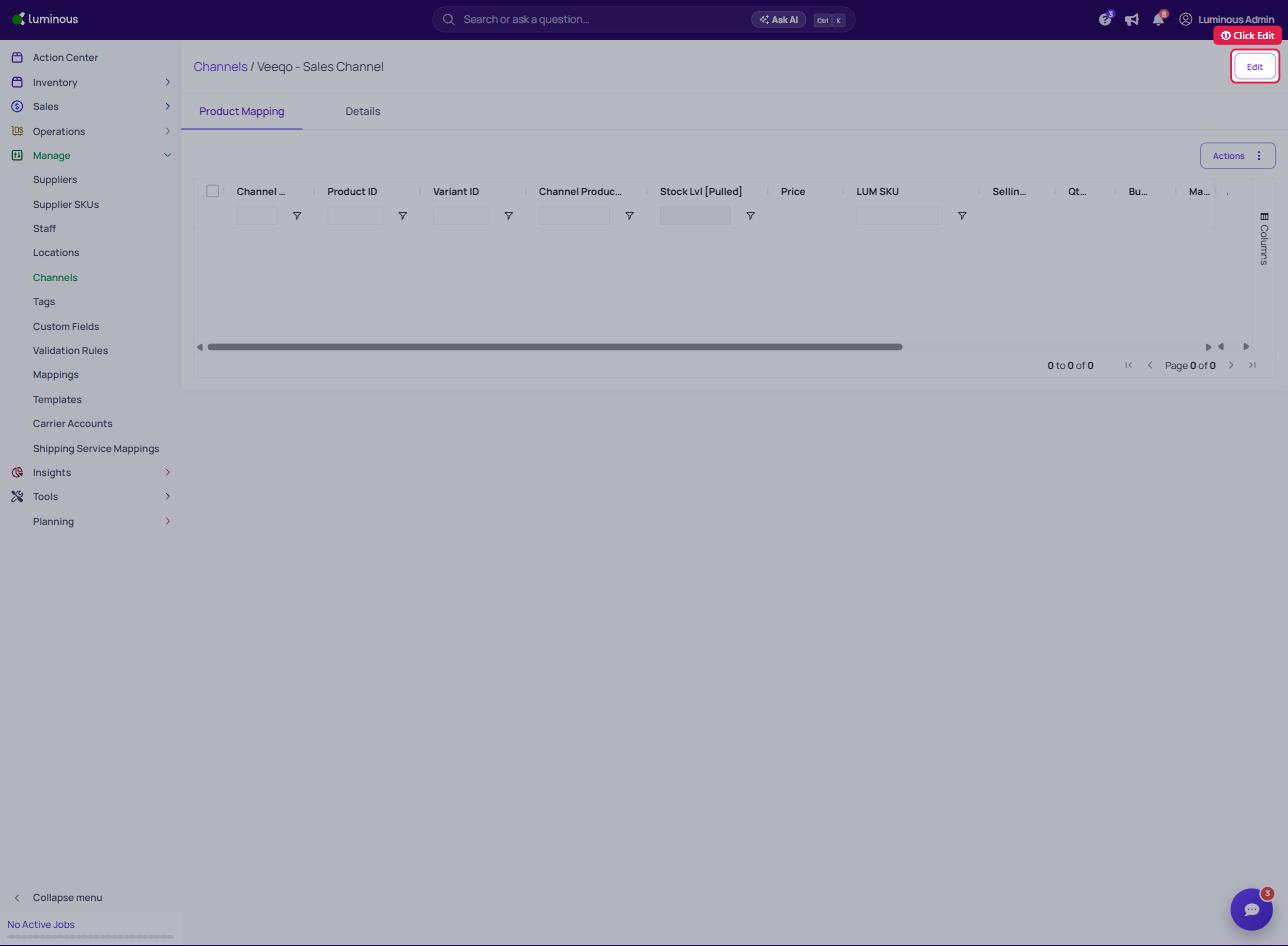
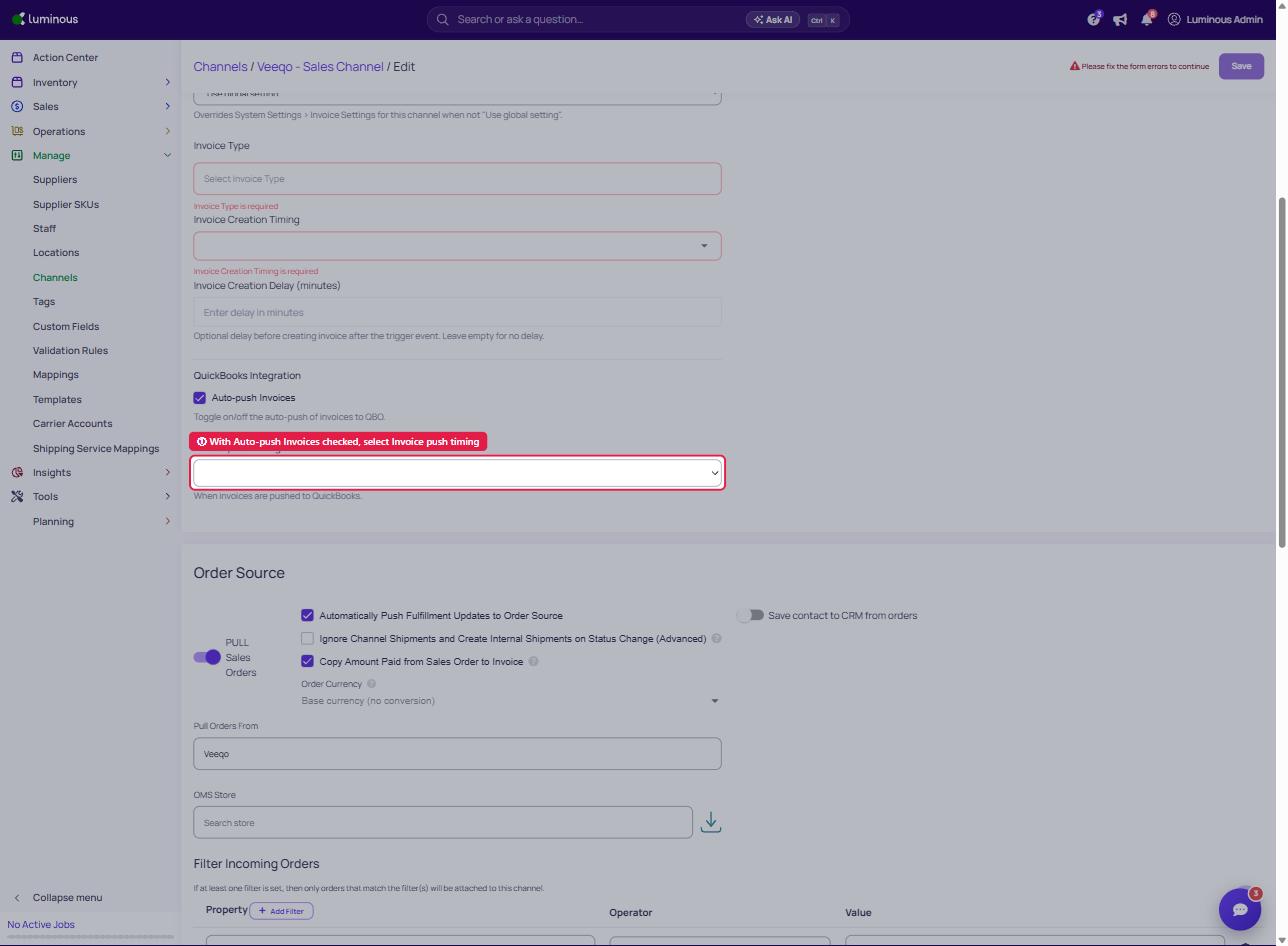
Enable first(toggle) the Create Invoice Automatically settings to show the Invoice setting
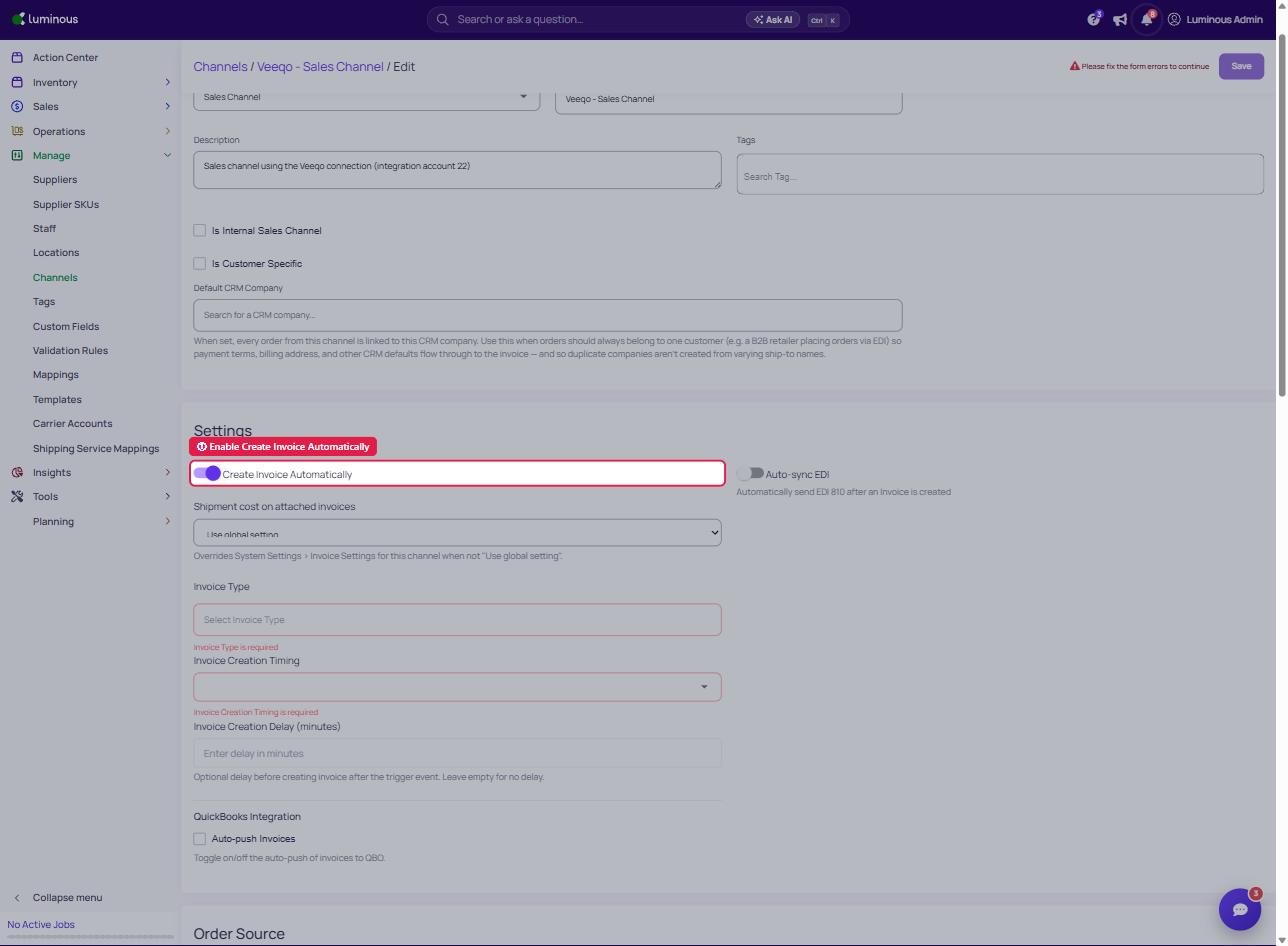
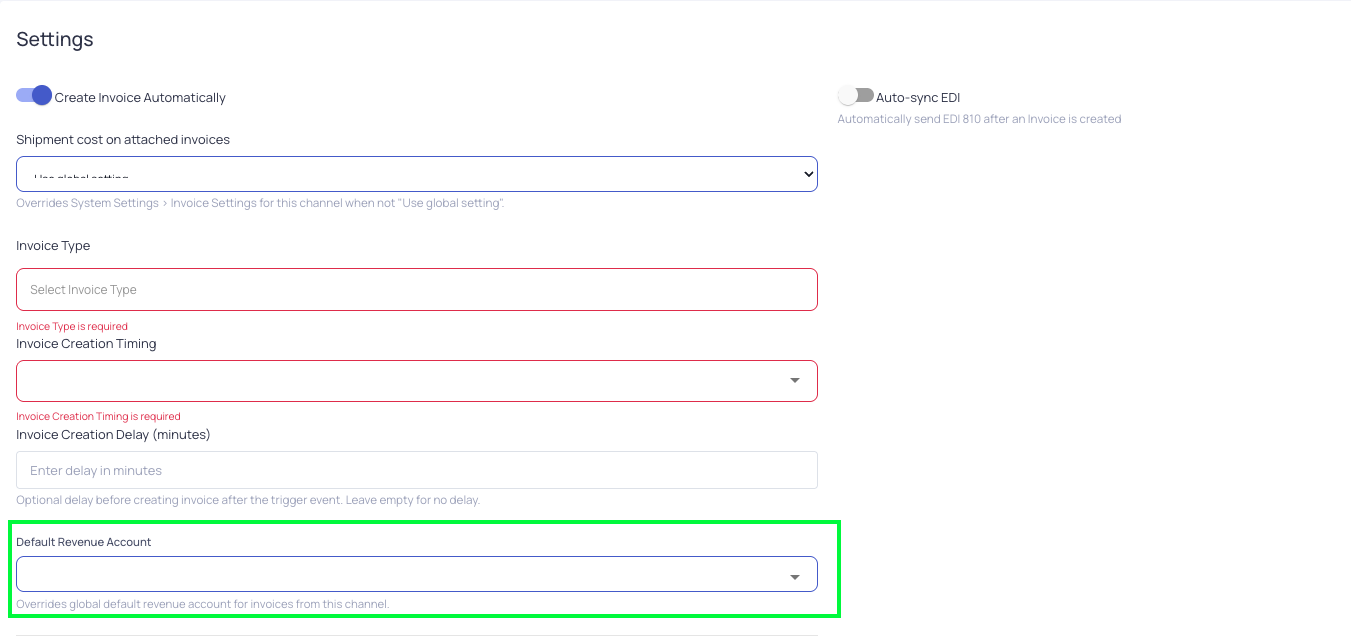
Scroll to Invoice Settings
Set Default Revenue Account
Select a revenue account
Overrides global default
Set Invoice Sync Timing
Enable Auto-push Invoices (under Quickbooks Integration)
Select timing:
When marked active (creation)
When marked paid
When order is marked shipped
Step 4: Map Revenue Accounts to QuickBooks Items
Navigate to:
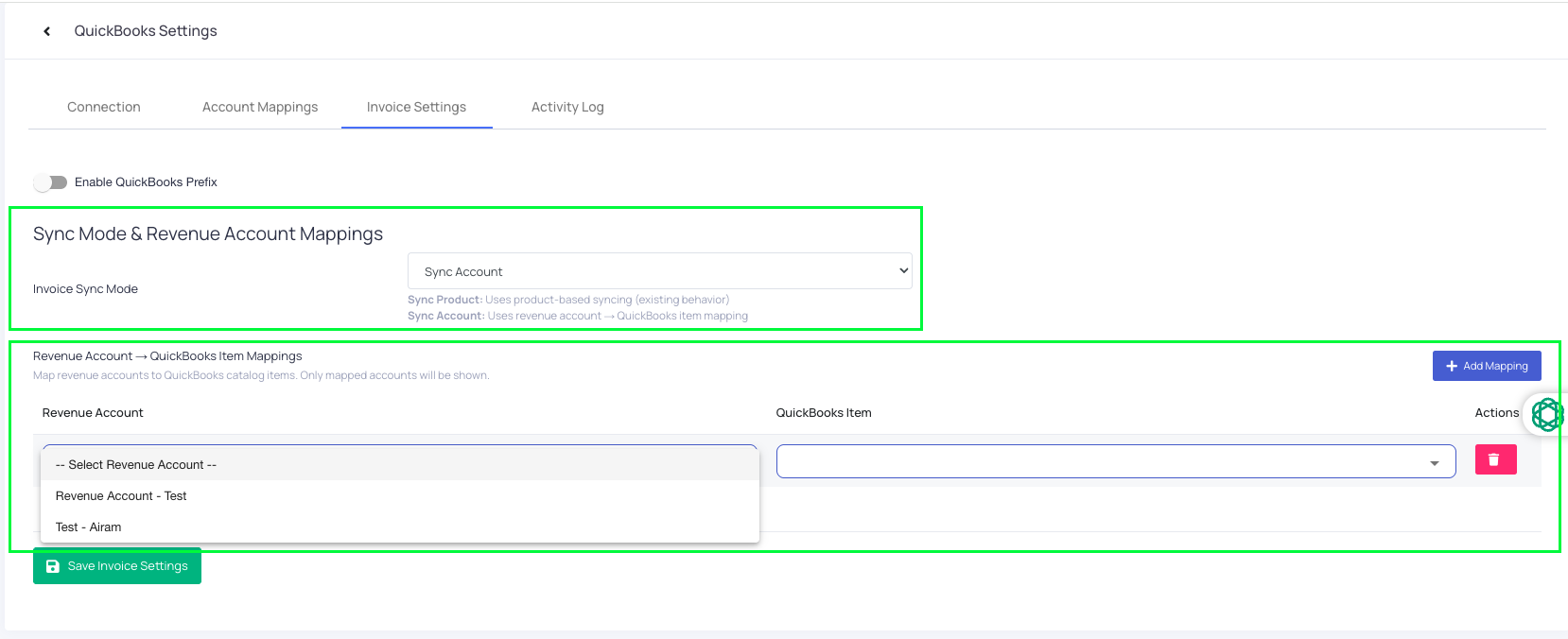
Go to Settings → QuickBooks → Invoice Settings
Click the drop down for Sync Mode and Revenue Account Mappings
Invoice Sync Mode
Sync Product
Sends individual products
Best for detailed reporting
Sync Account
Uses revenue account mapping
Sends a generic product tied to a General Ledger account
SKU details appear in the description field
Select Sync Account in order to configure the Account Mapping Section
Locate Revenue Account - Quickbook Item Mappings section
For each revenue account:
Select a Luminous Revenue Account
Enter the exact QuickBooks Product/Item name
Save changes
Important:
Names must match exactly
Each QBO item must already exist
Each item should be tied to a General Ledger account in QuickBooks
How Invoice Sync Works
When invoices sync:
The mapped QuickBooks item is used
SKU + product name appear in the description
Revenue account is applied in this order:
Invoice-level
Channel default
Global default
Tips & Best Practices
Create generic QuickBooks products per revenue account
Keep naming consistent
Use channel defaults to reduce manual work
Test with one invoice before enabling auto-sync
FAQs / Troubleshooting
Invoices syncing to the wrong account
Check invoice-level selection
Verify channel default
Confirm global default
Review QBO mapping
QuickBooks item not recognized
Ensure exact name match
Confirm item exists in QuickBooks
Revenue Account dropdown not visible
Appears only when multiple revenue accounts exist
Need Help?
If assistance is needed, contact the support team.